Last updated: Oct 5, 2026 at 12:46AM
When Osello syncs data with a marketplace or your source store — products, listings, offers, orders — anything that doesn't go through cleanly is recorded as a sync issue. The Sync Issues page is your worklist: each row is one unique problem, no matter how many times it has happened.
Find your sync issues
Open Data → Syncs → Issues for every issue across your account, or use the Sync Issues link on a marketplace, integration, product, or order to see just the issues for that one thing.
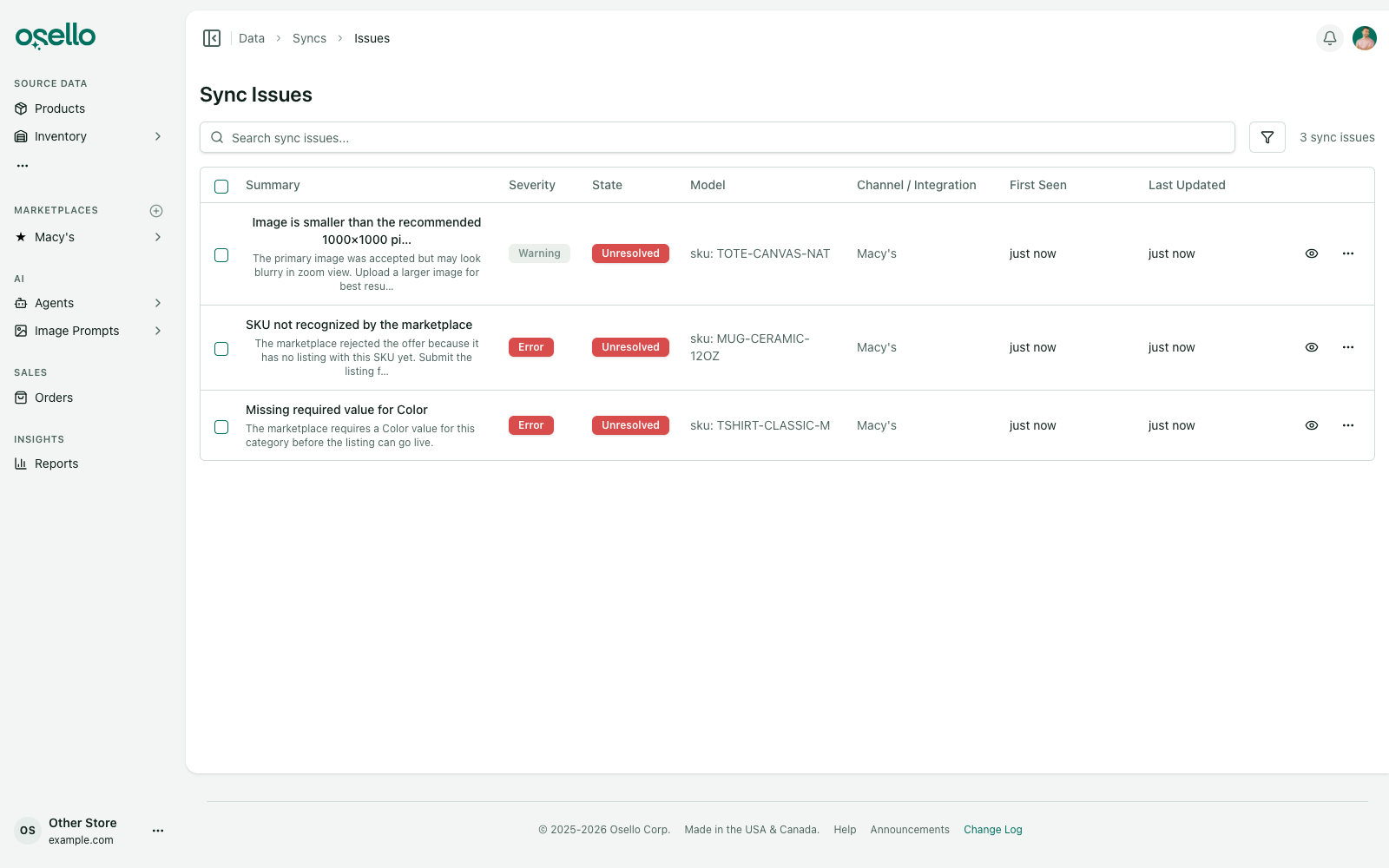
Each issue shows:
- Summary — what went wrong, with a longer description underneath.
- Severity — Error means the sync was blocked; Warning means it went through but needs attention.
A temporary problem, like a rate limit or a dropped connection, also shows as a Warning and resolves on its own when the next sync succeeds. If the same record keeps failing, it becomes an Error and our support team is notified. - State — see below.
- Model — the product, listing, or order the issue is about, usually linked so you can jump straight to it.
- Channel / Integration — where the issue came from.
By default the page shows only Unresolved issues. Use the filters to include snoozed, ignored, or resolved ones, narrow by severity or record type, or search by SKU, summary, or description. You can also change how many rows show per page at the bottom of the list.
Issue states
- Unresolved — needs your attention. New issues start here.
- Snoozed — hidden until a date you choose, then it returns to unresolved automatically. Good for "can't deal with this until next week."
- Ignored — hidden indefinitely. New occurrences won't reopen it. Good for noise you've decided doesn't matter.
- Resolved — done. If the same problem happens again, a new occurrence reopens the issue automatically.
To act on a single issue, open its row menu (⋯) and choose Snooze, Ignore, Resolve, or their opposites (Unsnooze, Unignore, Reopen).
Fix many issues at once
Every Sync Issues page supports bulk actions:
- Select issues with the checkboxes (the header checkbox selects the whole page, and Select all extends the selection to every issue matching your current filters).
- Open Choose action... and pick an action under Sync Issues: Snooze, Unsnooze, Ignore, Unignore, Resolve, or Reopen.
- Confirm in the dialog.
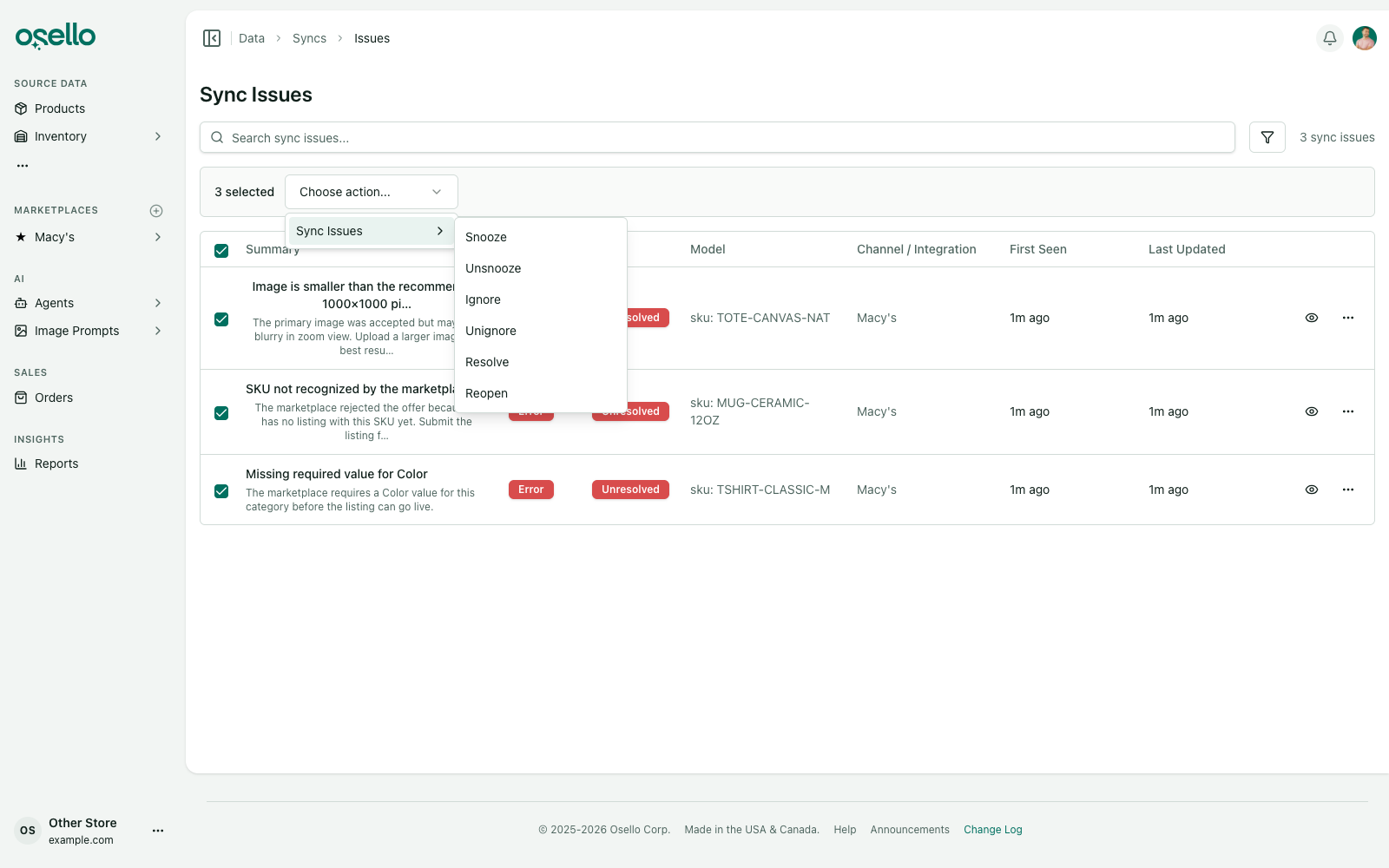
Issues that can't take the action are simply skipped — for example, ignoring a selection that includes an already-resolved issue leaves the resolved one untouched. The confirmation toast tells you how many were changed and how many were skipped.
Snoozing
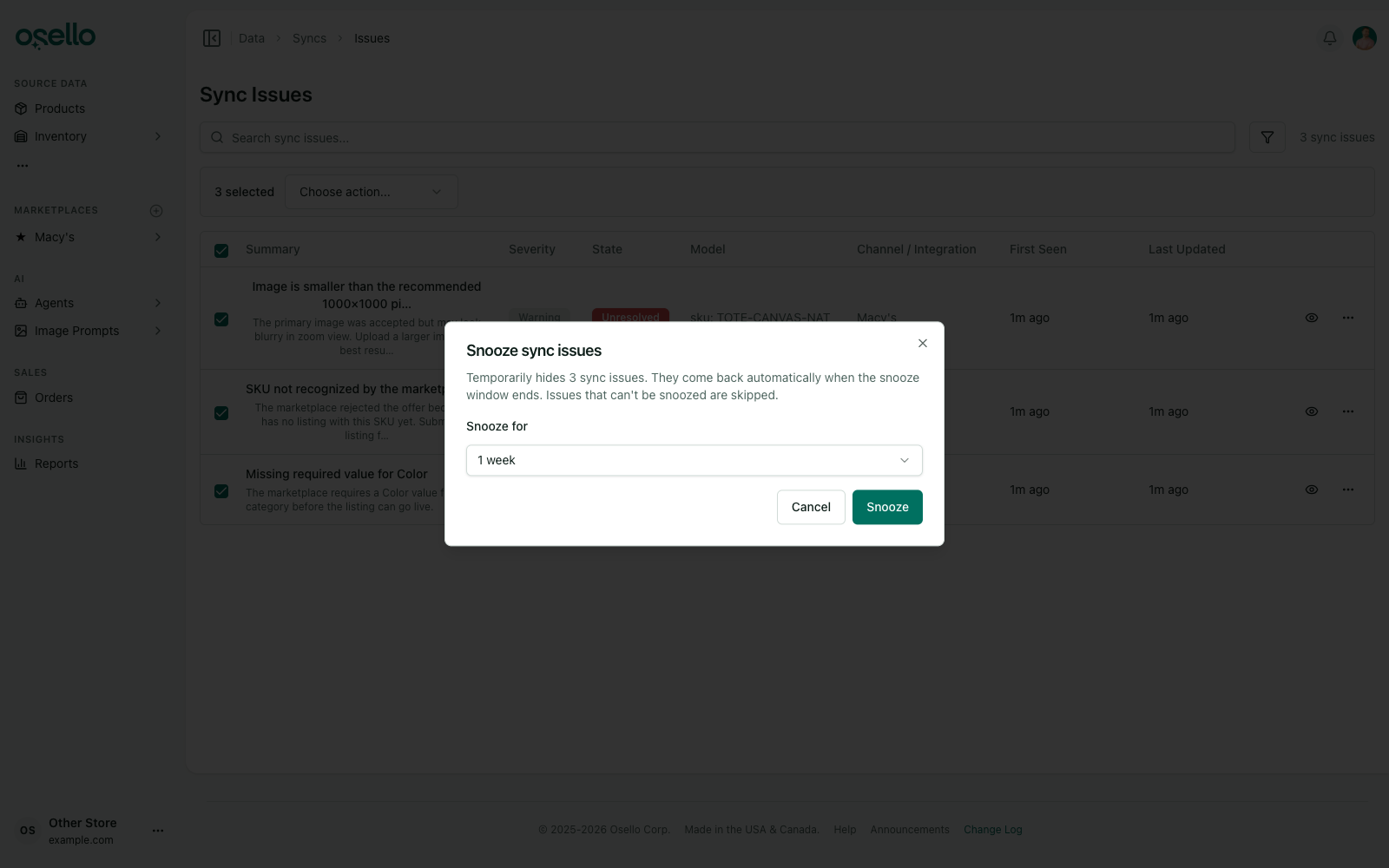
Snoozing asks how long to hide the issues — from a day up to a year (one week by default). When the window ends, the issues return to unresolved on their own. Snoozing an ignored issue moves it onto the snooze schedule instead.
One nice detail: if you resolve a snoozed issue and later reopen it while its snooze window is still active, it goes back to snoozed — not straight to unresolved.