
Last updated: Oct 14, 2026 at 12:59PM
A cancellation can start in three places — Osello, your Shopify store, or the marketplace itself. Wherever it starts, Osello syncs it to the other two so nothing ships that shouldn't.
Canceling from Osello
- Open the order from Sales > Orders.
- Open the actions menu and choose Cancel Order.
- Add a reason if you like (it's optional), then confirm with Cancel Order.
Osello cancels every item that hasn't shipped yet, notifies the marketplace, and mirrors the cancellation to the order in your Shopify store. Items that already shipped are left untouched — if some items had gone out, only the rest are canceled and the order shows a partial status instead of Canceled.
Target+ takes cancellations item by item, with a reason from its own fixed list. Osello cancels each item on Target+ and picks the closest Target+ reason from what you entered (an out-of-stock reason becomes "item not available", an address problem becomes "shipping address undeliverable", anything else becomes "other").
You can't cancel an order that has fully shipped. Once everything is on its way to the customer, money moves back through a return and refund instead — see How returns and refunds work.
Canceling from Shopify
If your team works out of Shopify, cancel the order there. Osello picks up the change within moments and passes the cancellation to the marketplace for you. This only works until the marketplace has been told the order shipped; after that, see Canceled in Shopify after the order shipped below.
Refunding an unshipped item in Shopify counts as canceling that item: Osello records it as canceled and tells the marketplace, so the customer isn't left waiting on something that will never ship.
When the marketplace cancels
Customers can cancel through the marketplace, and marketplaces sometimes cancel orders themselves. When that happens, Osello spots the change on its next check, marks the order Canceled, and cancels it in your Shopify store — no action needed from you.
The same applies to single items: if the marketplace cancels part of an order, Osello marks just those items canceled and the rest of the order carries on normally.
A marketplace can also refund an item before it ships, for example when a customer asks for their money back on a late item. Osello marks the item Refunded, then refunds and cancels it on the order in your Shopify store. Shopify stops listing the item as unfulfilled, releases the inventory it was holding, and lowers the order total by the refunded amount. No money moves through Shopify, because the marketplace already paid the customer back. Items that already shipped are left alone: their refund arrives through a return.
Canceled in Shopify after the order shipped
Sometimes an order is canceled in Shopify after Osello has already told the marketplace it shipped. A fulfillment app might void the shipping label and cancel the order, or someone might cancel a fulfillment and never create a new one. By then the marketplace shows the order as shipped and has charged the customer. Marketplaces don't let a shipped order be canceled, so Osello keeps the order as the marketplace has it and tells you instead:
- The order page shows a red Canceled in Shopify after it shipped on marketplace alert (or Shipment canceled in Shopify after it shipped on marketplace when only the fulfillment was canceled). It says what happened and what to do.
- Your dashboard and the Orders list show how many orders are out of sync with the marketplace. View orders lists them. You can also open the filters on the Orders list (the funnel button next to the search box) and tick Only orders out of sync with the marketplace under Sync.
- The order's Order History shows each step Shopify recorded, such as the fulfillment, its cancellation, the refund and the order cancellation, with who did it and when.
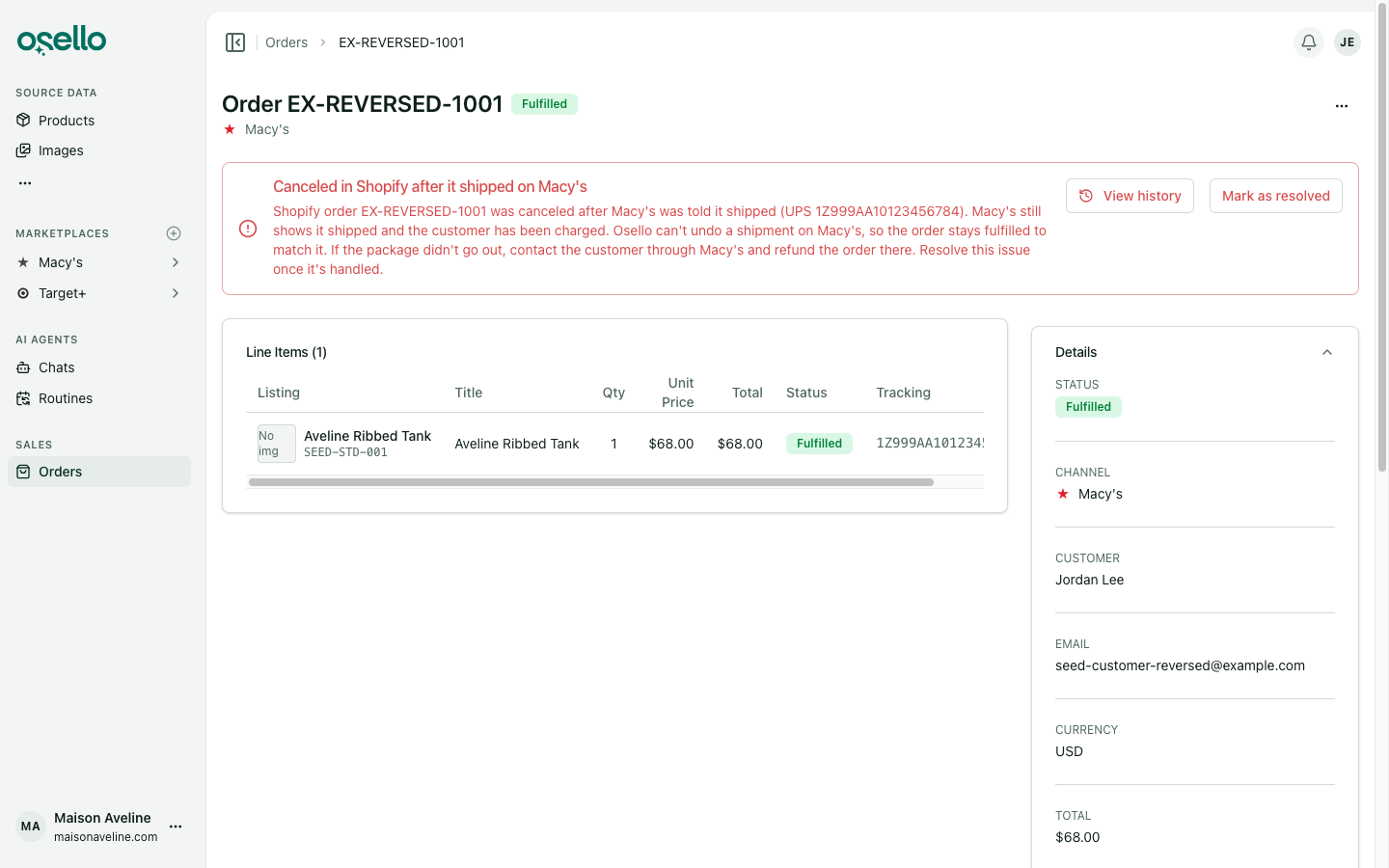
To fix it, check whether the package actually went out. If it didn't, contact the customer through the marketplace and refund the order there. If it went out under a new label, send the customer the new tracking number through the marketplace. Then choose Mark as resolved on the alert. If the marketplace shows the order refunded or canceled, Osello clears the alert for you.
What you'll see
- The order's status badge changes to Canceled, or to a partial status (like Partially Fulfilled) when only some items were canceled.
- Each item's own status appears in the order's Line Items table, so you can see exactly which items were canceled and which still need attention.
- The status change is recorded in the order's Order History, along with every change to the order's status in Shopify.