
Last updated: Nov 3, 2026 at 2:56PM
A promotion sends promotional prices for the SKUs in a file to one marketplace, between the times you pick. You upload the file, check which SKUs Osello matched, then launch it. Osello switches each SKU to its promotional price when the promotion starts and back to its regular price when it ends, so you don't have to change your product data or log in to the marketplace.
Promotions run on Target+ and on the Mirakl marketplaces Osello connects to: Macy's, Nordstrom, Bloomingdale's, Kohl's, Best Buy, Shop Simon and Dia.
Create a draft
- In the sidebar, open the marketplace and click Promotions. The same page is in the ... menu of the marketplace's Offers page.
- Click New promotion.
- Give it a Name, for example
Black Friday. - Pick when it Starts and Ends: a day and a time for each, in your own time zone, which the form names under them. The start is the next full hour unless you change it, and a day you pick for the end ends at 11:59 PM unless you change the time.
- Choose the File: the SKUs in the first column and their promotional prices in the second. Click Template for a blank file to fill in.
- Click Upload and review.
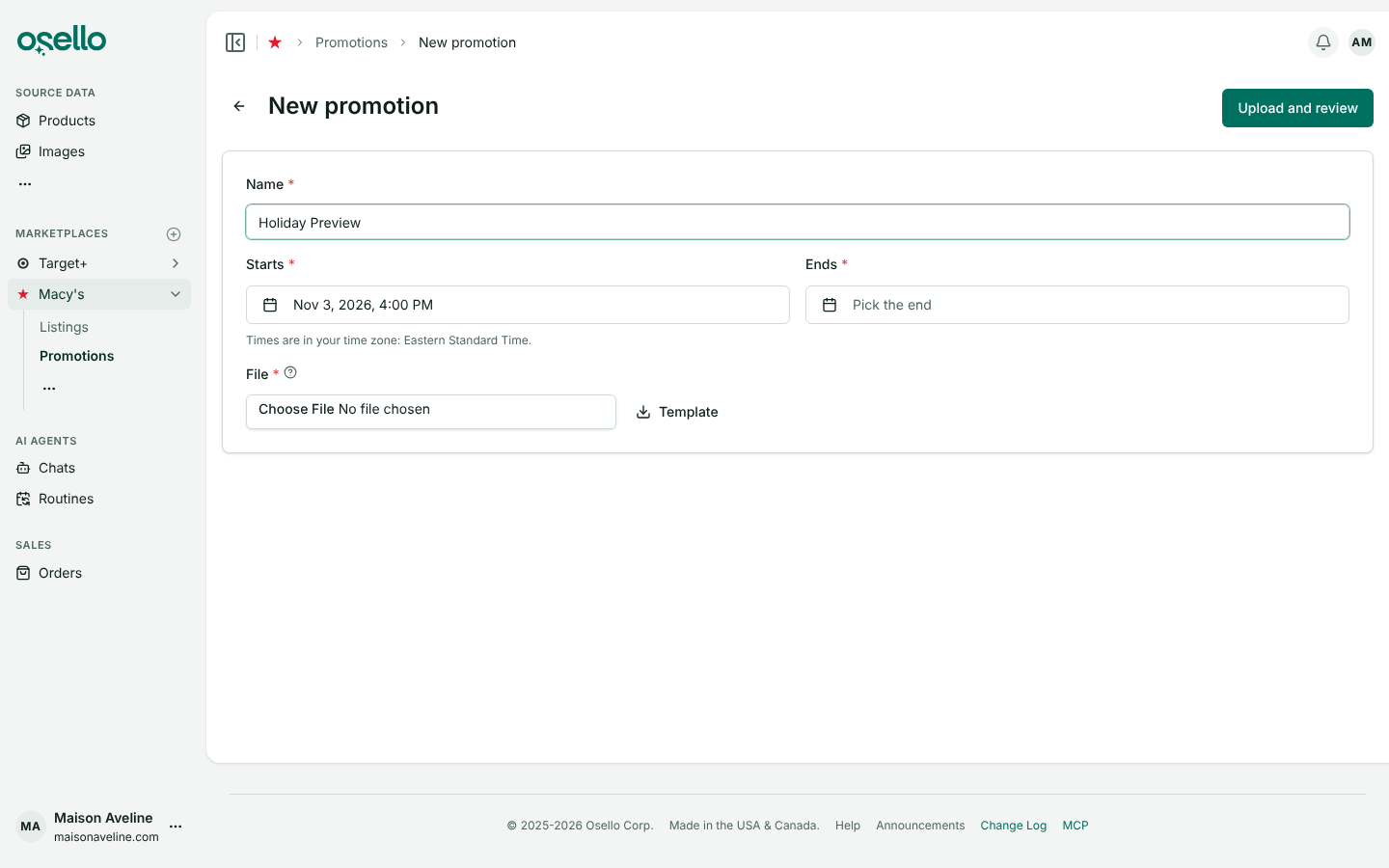
Osello saves the promotion as a draft, reads the file and opens the draft's review. Nothing goes to the marketplace until you launch it.
Fill in the file
The file is a .csv or .xlsx (Excel) file with one SKU per line:
| SKU | Price |
|---|---|
| MA-TOTE-BLK | 129.00 |
| MA-SCARF-IVR | $49.50 |
- Use the SKU as listed on that marketplace. Once a listing has been submitted its SKU stays as listed, even if you later change the SKU in your store.
- A header row is optional. Prices can include
$and commas, like$1,299.00. - An Excel file is read from its first sheet.
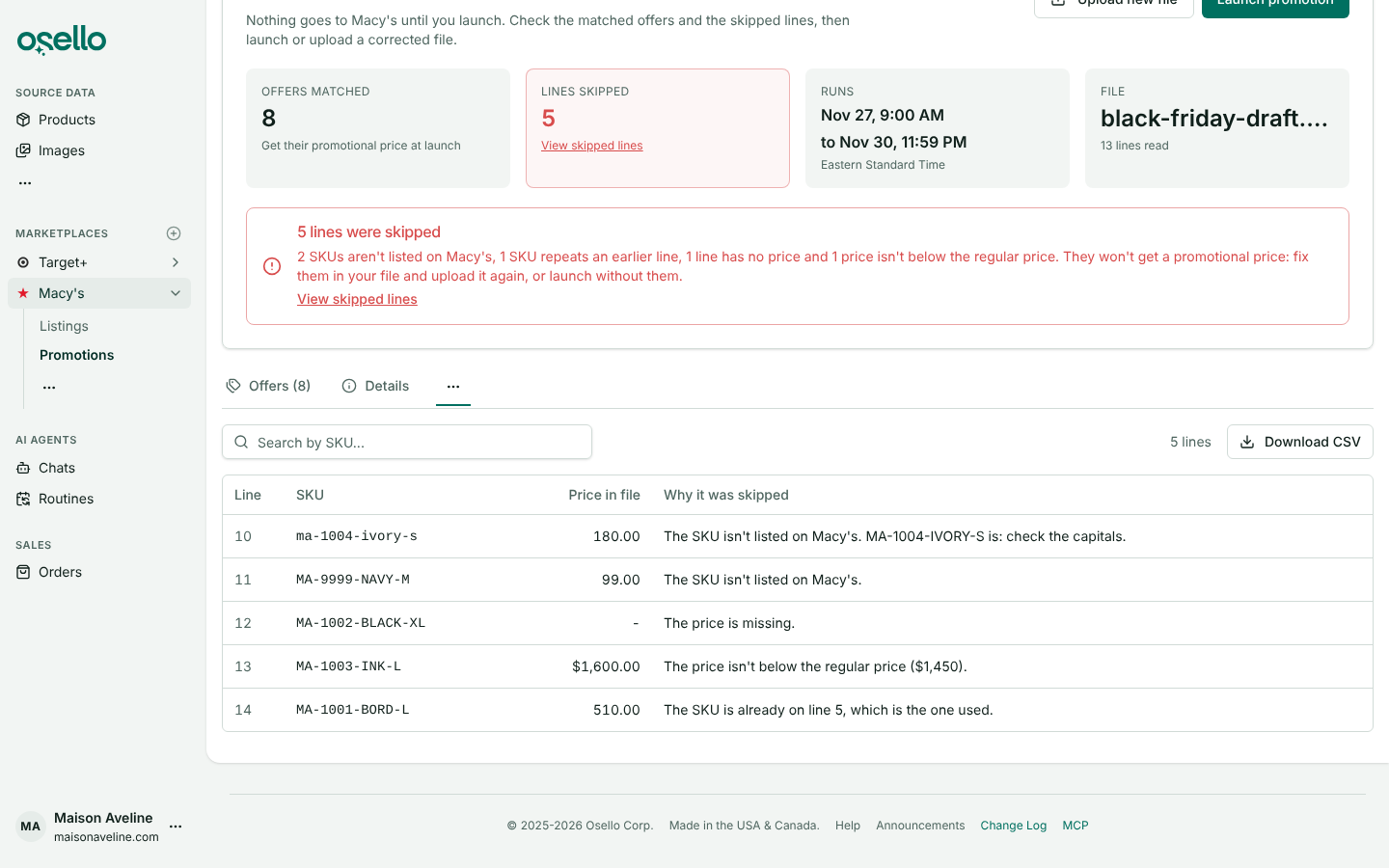
Lines that can't be used are skipped, and the review says why:
- The SKU or price is missing, the price isn't a number, or it is $0.
- No listing on the marketplace has that SKU. When only the capitals differ, the reason names the listed SKU.
- The price isn't below the SKU's regular price on the marketplace.
- The SKU is already on an earlier line, which is the one used.
Review and launch
The draft's page opens on its review: how many offers matched, how many lines were skipped and why, its dates and its file. The Offers tab under it lists every matched SKU with its MSRP, its price without the promotion and its promotional price.
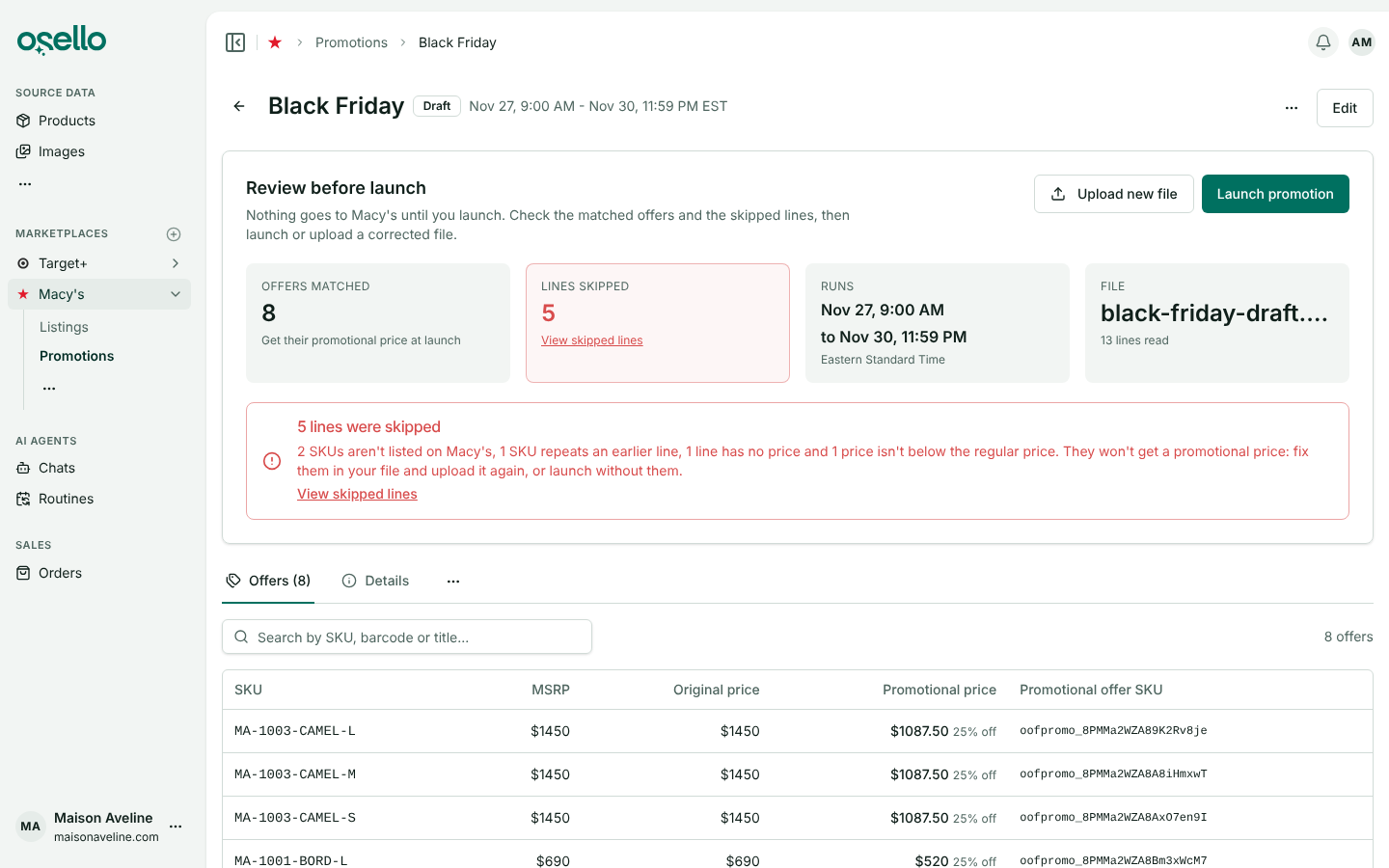
- To see the skipped lines, click their count or View skipped lines. The page is also under the ... at the end of the promotion's tabs. Each line shows the SKU and price as your file wrote them and why the line was skipped, and Download CSV saves them as a file to fix.
- To fix the file, click Upload new file and choose the corrected one. Osello reads it and the review shows the new results. Edit changes a draft's name and dates as well as its file.
- When the results look right, click Launch promotion. The confirmation repeats the marketplace, the start and end times, and the number of offers and skipped lines. The SKUs on skipped lines keep their regular price, and once launched the promotion can't be changed.
A draft can't be launched while its file is being read, when nothing in the file matched an offer, or once its end has passed. For a draft whose end has passed, click Edit, pick new times and launch it. If its start has passed when you launch it, it starts right away.
When it starts and ends
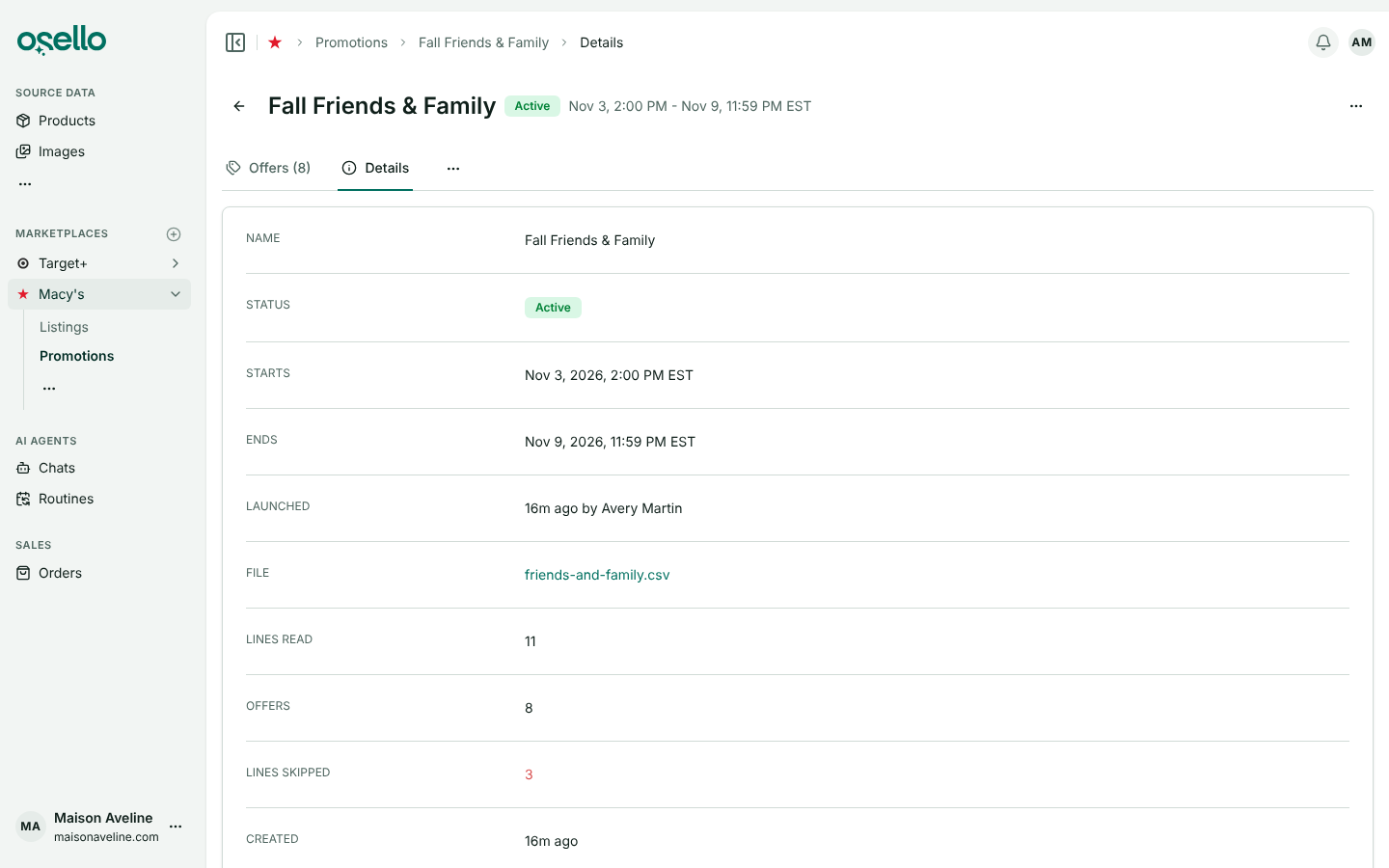
A promotion runs from the minute it starts until the minute it ends. You pick both in your own time zone, and everyone sees them in theirs: a promotion that starts at 9:00 AM Eastern shows 6:00 AM to a teammate in California. The promotion's Details tab gives its start and end with the time zone.
Prices change on the marketplace within a few minutes of the start and of the end. Osello only sends them while the marketplace's Push Offers setting is on (the Sync card on its Settings -> Offers tab), and the promotion's page warns you when it is off.
What the marketplace gets
Target+: the promotional price is sent as the item's offer price when the promotion starts, and the regular price goes back when it ends.
Mirakl marketplaces: Osello adds a second offer to the product, the promotional offer, alongside your regular one. Its SKU starts with oofpromo_, its price is the regular price and its discount is the promotional price. The promotional offer is removed when the promotion ends, and it carries the promotion's end date so the marketplace takes it down at the end on its own as well.
- Both offers carry your full stock. Units sold on either one come off your stock, and the lower quantity goes out to both on the next sync.
- An order placed on the promotional offer comes into Osello under your listed SKU, so it syncs to your store like any other order.
Promotions that overlap
A SKU can be in more than one running promotion. It gets the lowest promotional price, and that promotion's offer is the one listed on a Mirakl marketplace.
A promotional price is only used while it is below the SKU's regular price. When the marketplace also gets a discounted price for the SKU, the promotional price has to be below that too.
Check a launched promotion
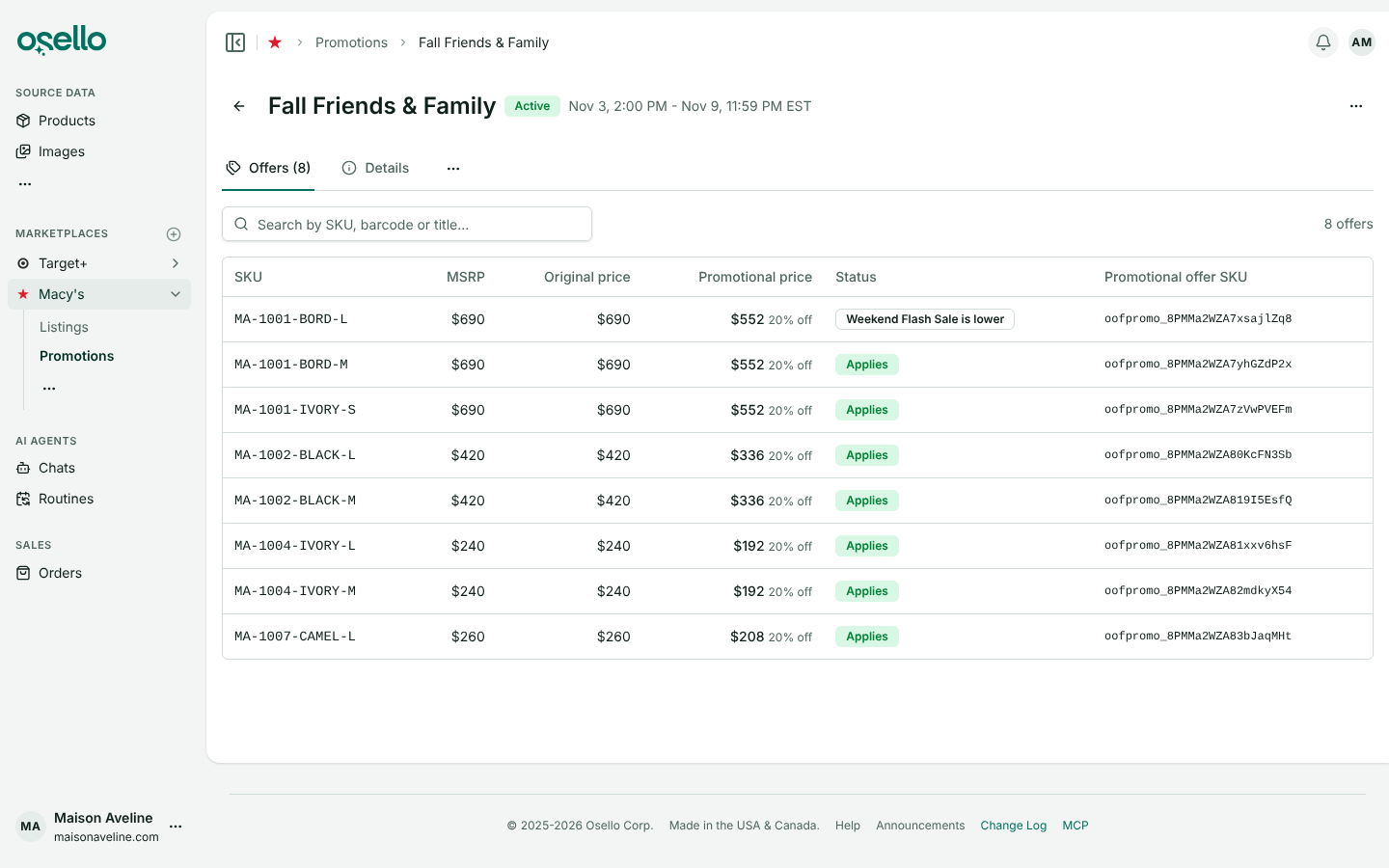
Once launched, the promotion's Offers tab also says whether each promotional price applies right now. When it doesn't, the status says why: the promotion hasn't started or has ended, the price isn't below the regular price, the discounted price is lower, or another promotion has a lower price. On Mirakl marketplaces the tab also shows each promotional offer's SKU. Search it by SKU, barcode or title, like the Offers page.
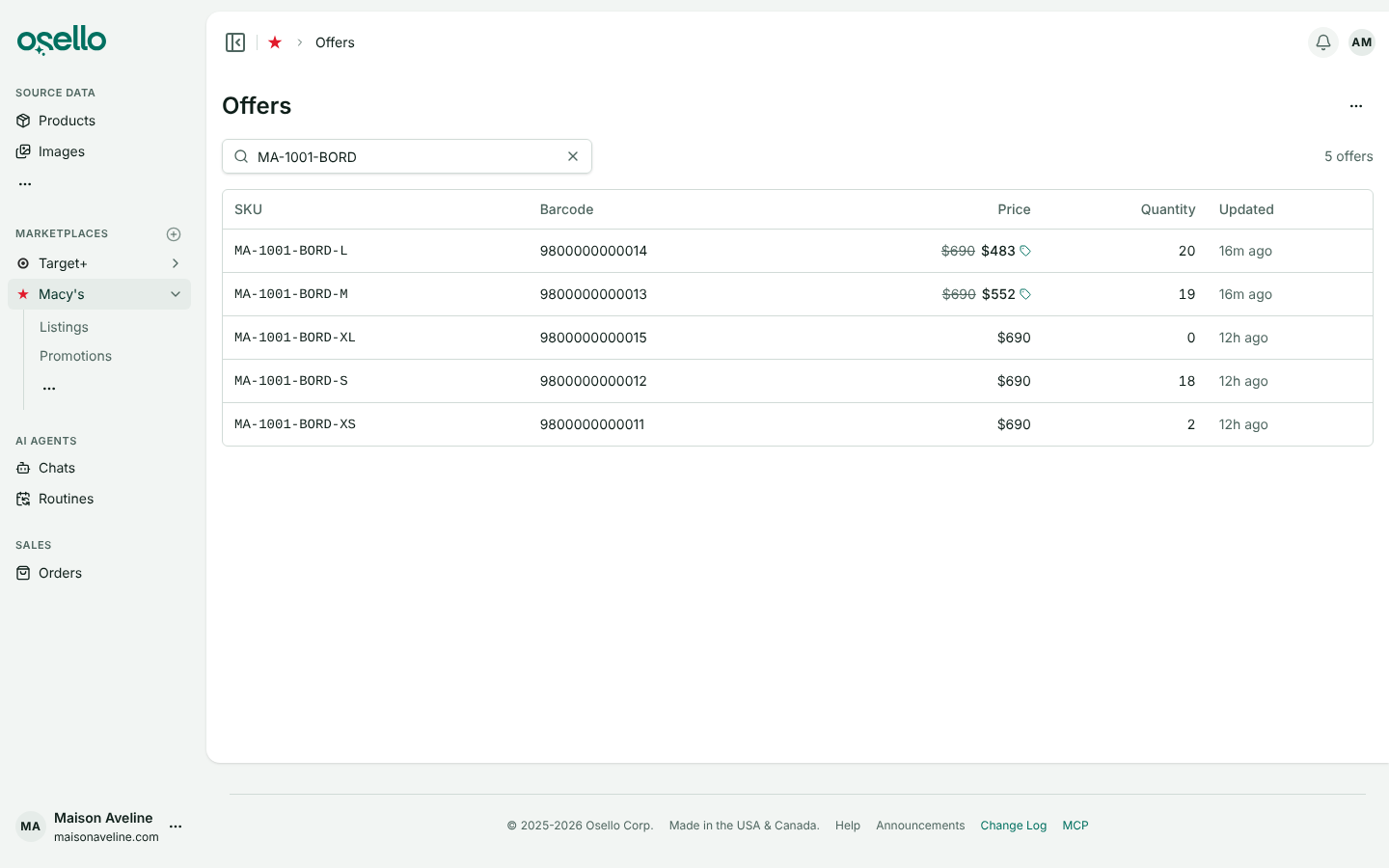
While a promotion runs, the marketplace's Offers page, its Listings page and each listing show the promotional price beside the struck-through regular price, with a tag icon. Hover the price to see which promotion set it, with a link to the promotion, its price and its dates.
The Details tab has the promotion's start and end, who launched it and when, its file, and how many lines were read and skipped.
Delete a promotion
To end a promotion early, open the ... menu on its page and choose Delete promotion. A running promotion's SKUs go back to their regular prices within a few minutes. Deleting a promotion that hasn't started, or a draft (Delete draft), changes nothing on the marketplace.
A launched promotion can't be changed. To run it with other prices or dates, delete it and create a new one.
Promotions can also be created, launched and deleted through the Osello API and by AI assistants connected to Osello, which can send the file's contents as text. They give the start and end as exact times with a time zone offset, and a promotion created that way is a draft until it is launched too.