
Last updated: Oct 2, 2026 at 7:26PM
Osello tracks stock per location, and you decide which locations count — for your whole account, and separately for each marketplace. That means you can sell your east-coast warehouse on one marketplace and hold back your retail-store stock from all of them.
Where locations come from
- From Shopify. When your Shopify store is connected, Osello imports your Shopify locations. To refresh them anytime, go to Inventory then Locations in the sidebar, open the actions menu, and choose Pull Locations From Shopify.
- Added by hand. Click New Location on the same page to create one yourself — give it a name and a handle, optionally an address, and leave Enabled on. Manual locations are useful for a 3PL or warehouse that isn't in Shopify; you can then upload its quantities from a spreadsheet.
Turn a location on or off for your whole account
The Inventory then Locations page lists every location with an Enabled or Disabled status. Open a location, click Edit, and switch Enabled off to exclude it everywhere.
Two things to know:
- Stock in a disabled location doesn't count toward any marketplace.
- Disabling a location also switches it off for every marketplace, and it can't be re-enabled for a marketplace until you enable it account-wide again. When you re-enable it, it turns back on for your marketplaces too.
Choose locations per marketplace
Each marketplace has its own location list:
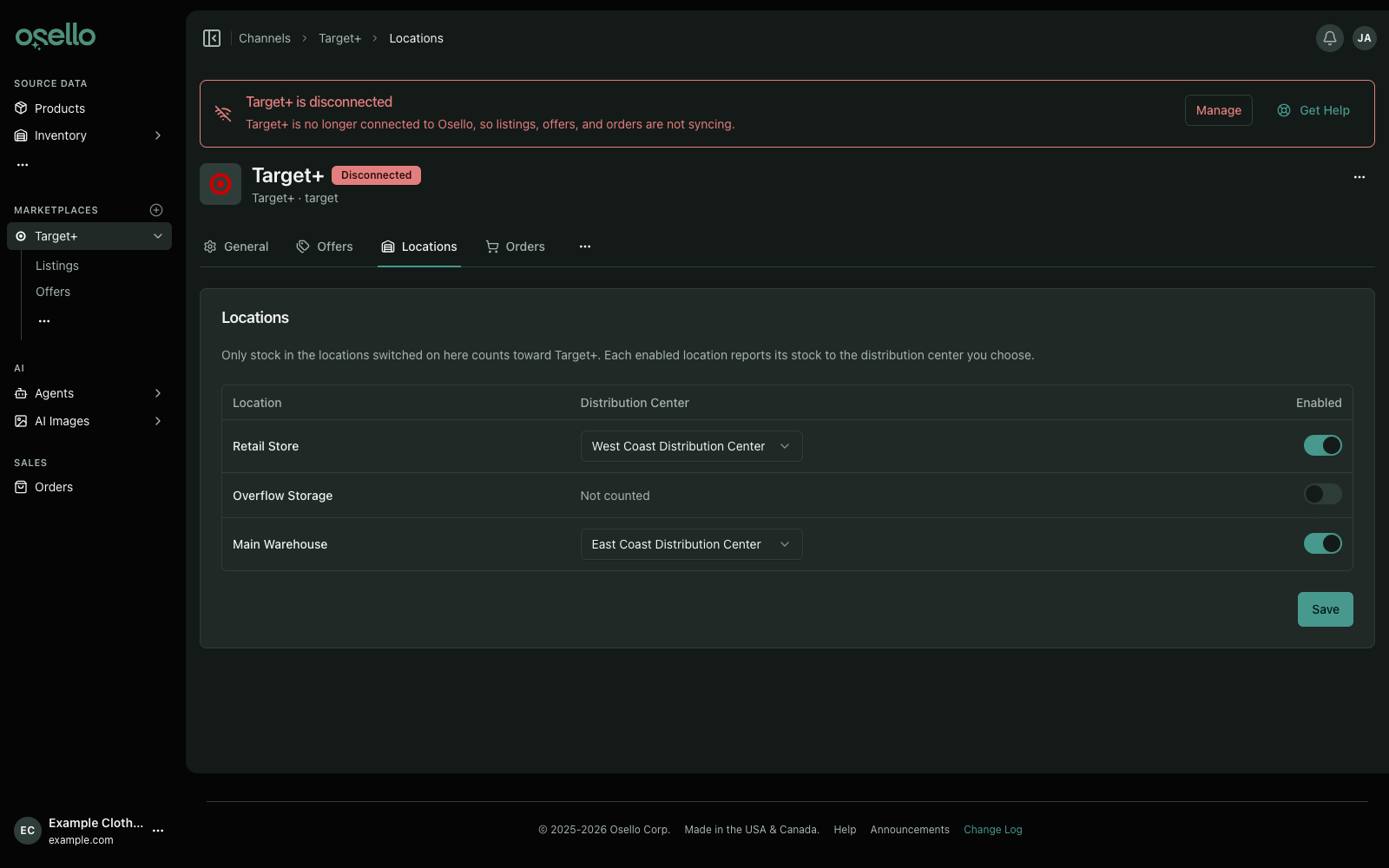
- In the sidebar, open the marketplace and click Inventory Locations (it's the Locations tab of the marketplace's settings).
- Use the Enabled switch next to each location to include or exclude it for that marketplace only.
- Click Save. The whole list saves together.
New locations start enabled for every marketplace, so you only need to visit this page to exclude something. If a location shows as "Disabled for the whole account", it's off at the account level — enable it under Inventory then Locations first.
Marketplaces with their own facilities
Some marketplaces track your stock per facility — Target+ calls them distribution centers. On those marketplaces, each enabled location has a Distribution Center dropdown: pick the facility that location's stock should be reported to. Several locations can report to the same facility; Osello adds them up.
Osello links locations for you when it can:
- If the marketplace has exactly one facility, every location reports to it.
- If it has several, a location is linked to the facility with the same name (capitalization, spacing and punctuation don't matter). Names that are merely similar are not guessed — choose those yourself.
- A choice you've saved is never changed automatically, and new locations get the same treatment when they arrive.
An enabled location with no facility would send nothing, so Save won't accept one: pick a facility or switch the location off. If the dropdown is empty, use Pull Settings on the marketplace's settings page to load its facilities first.
How this affects the stock you sell
A marketplace only ever sees stock from locations that are enabled in both places: account-wide and for that marketplace. Osello adds those locations together and sends the total. Everything else is invisible to that marketplace — which is exactly what makes this the first place to look when a quantity seems too low.
Switching a location on or off, account-wide or for one marketplace, updates the affected offers right away, and the new quantities reach the marketplace within a minute.