
Last updated: Oct 17, 2026 at 4:11PM
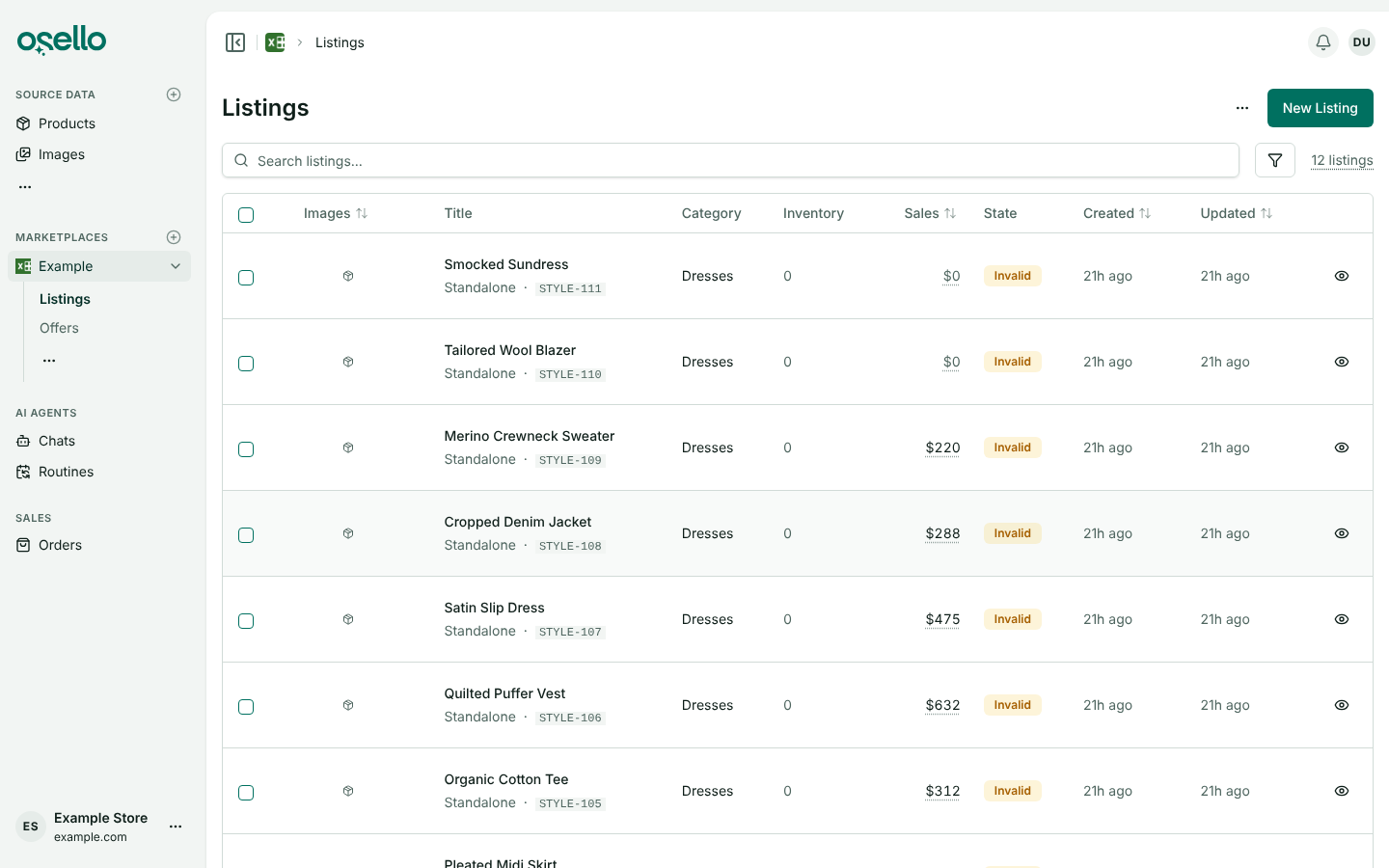
The Sales column on a marketplace's Listings page shows what each listing sold in a period you pick. It starts on the last 30 days. You can change the period, sort by sales, and filter to listings that sold more or less than an amount.
What counts as sales
- Sales are the item price times the units sold. Shipping and tax are left out, so a listing's sales add up to less than the order totals on your dashboard.
- Canceled units don't count, and neither do orders the marketplace or you canceled or refused.
- Refunds and returns are not subtracted, so a listing's sales for a past period don't drop when an item comes back.
- An order counts on the day it was placed on the marketplace, in your store's reporting time zone. Set it under Reporting Time Zone in your store's General Settings. Without one, days follow UTC.
- Only orders matched to a listing count. An order line for a SKU that isn't listed on the marketplace has no listing to add to.
- A new order shows up in sales within a few minutes of reaching Osello.
Amounts are rounded to three digits so the column stays narrow: $12,345.67 shows as $12.3k.
See the exact amount
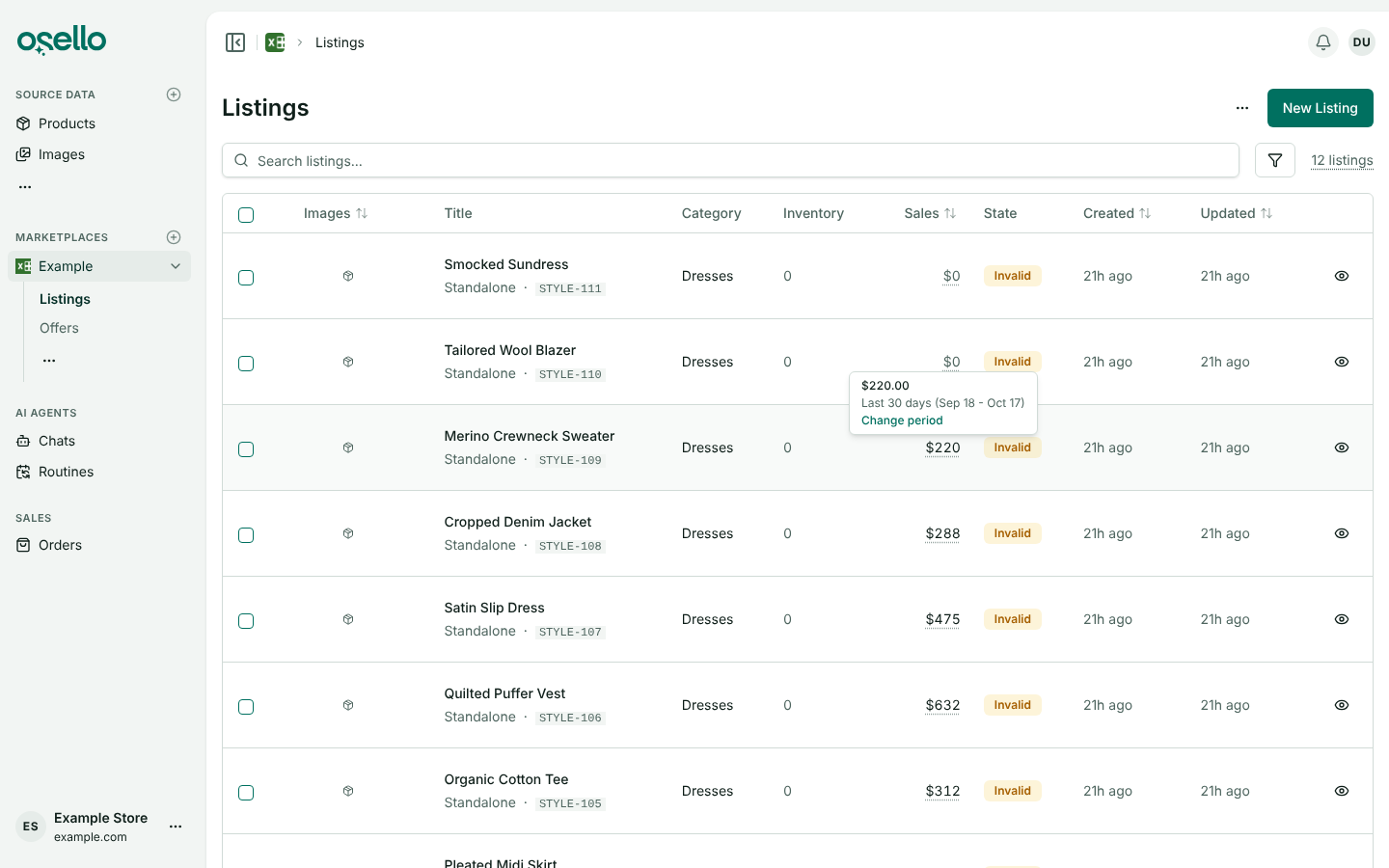
Hover over (or tap) an amount in the Sales column. The tooltip shows the exact figure and the days it covers.
Change the period
- Open the marketplace, then Listings.
- Hover over (or tap) any amount in the Sales column and click Change period.
- Pick a range on the left, such as Last 30 days, Last year or All time. To choose your own days, click the first and last day on the calendar instead.
- Click Apply.
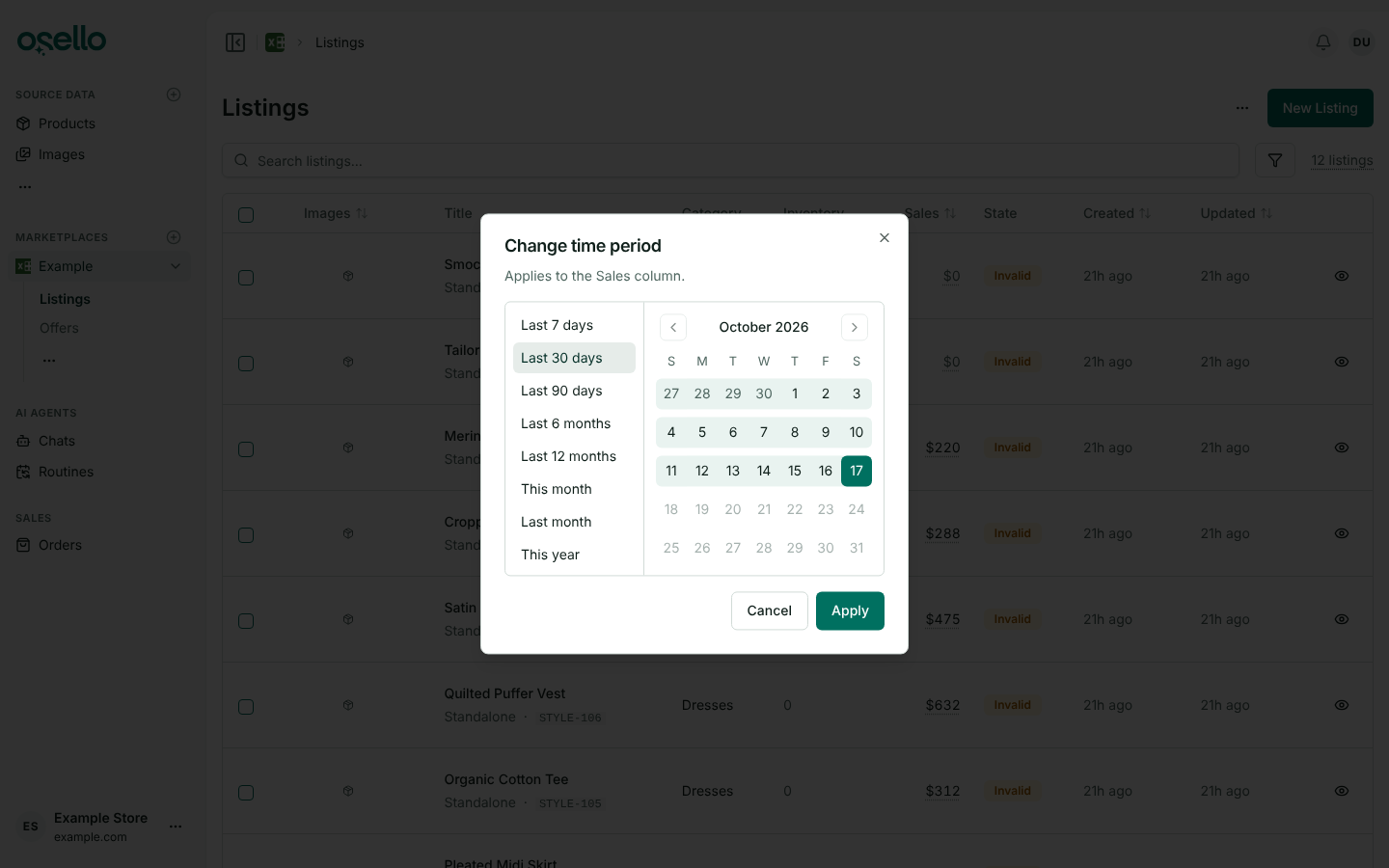
The period applies to the whole column. The ranges on the left stay relative to today: a saved link to Last 30 days shows the last 30 days whenever you open it. Last year is the previous calendar year, and Last 2 years runs back two years from today.
Sort by sales
Click the Sales column header, and click it again to flip the order. The sort follows the column's period. Listings that sold nothing in the period show $0.
Filter by sales
The sales filter has its own period. When you apply a sales range, the Sales column switches to the filter's period, so it shows the sales you filtered on. The column keeps its own period if you changed it with Change period since opening the page, unless it was still showing the filter's previous period.
For example, if you set the column to the last 90 days and then filter to listings that sold at most $1,000 in the last 7 days, the column stays on the last 90 days.
- Click the filter button next to the search box.
- Open Sales.
- Click the Period button to pick a range, turn on Sales range, and enter a minimum, a maximum or both.
- Click Apply Filters.
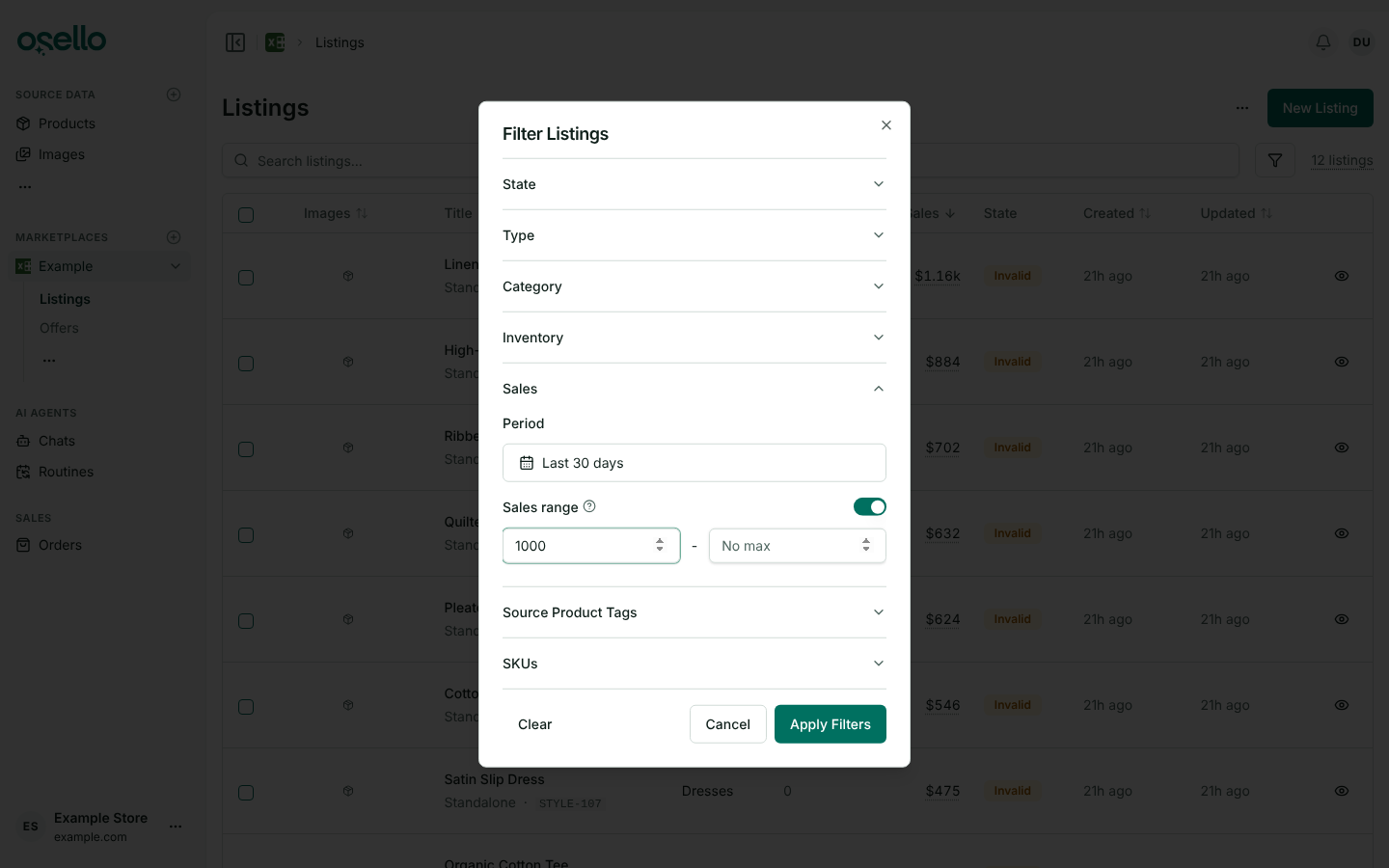
To find listings that haven't sold in three months, set the period to Last 90 days and the maximum to 0.