
Last updated: Sep 29, 2026 at 9:00PM
If you were already selling on Target+ before you connected Osello, you don't have to rebuild those listings by hand. Osello reads them straight from Target+ — the product content, the status of every item and every problem Target is reporting — so you can pick up from where your catalog actually stands today.
What comes across
Every listing, whatever state it is in. Approved items, items awaiting review, rejected items, unlisted items and suspended items all come across. Nothing is filtered out for having a problem — the problems are the reason to import.
The listing structure. A standalone product on Target+ becomes a standalone listing. A variation group becomes one listing with its variations under it. The variation themes Target lists for the group become that listing's variation options, with each child's values: Color, Size, and Size Group (which Osello calls Size Type). A theme Osello doesn't have a variation option for yet, such as Pattern, still comes across as an ordinary field value on each variant.
The content. Titles, descriptions, bullets, images, category and marketplace attributes are read back onto the matching fields, so the listing is ready to edit and resubmit rather than being an empty shell.
The status and the reasons behind it. Each variant gets the status Target reports for it. Where Target is asking for changes, each problem it named appears as an issue on the listing — attached to the field it is about wherever Target names one — so you can work through them the same way you would a rejection that arrived after a submission. Items Target has approved and is holding a price and stock for are marked live.
Nothing is sent back. The import only reads. It doesn't submit anything, doesn't change prices and doesn't push inventory.
Before you start
Connect your Target+ marketplace first — see Connect Target+. The import needs the connection to read your catalog.
It also helps to have your products in Osello already, because the import links each listing to the product it came from by SKU or barcode. A listing that finds no match still imports, and Osello shows a banner on it saying so — it just has no price or inventory to send to Target+ until you import that product and run the import again.
Run the import
- Open the store menu at the bottom of the left sidebar and click Imports.
- Click New Import.
- Choose Marketplace Listings, then Pull from Target+.
- Pick your Target+ marketplace. There's no file to upload.
- Leave the filters alone to import your whole Target+ catalog, or narrow it (below).
- Click Start Import.
You can also start it from your Target+ marketplace's Listings page: open the actions menu (...), choose Imports under Imports/exports, then click New import. The marketplace is already picked there.
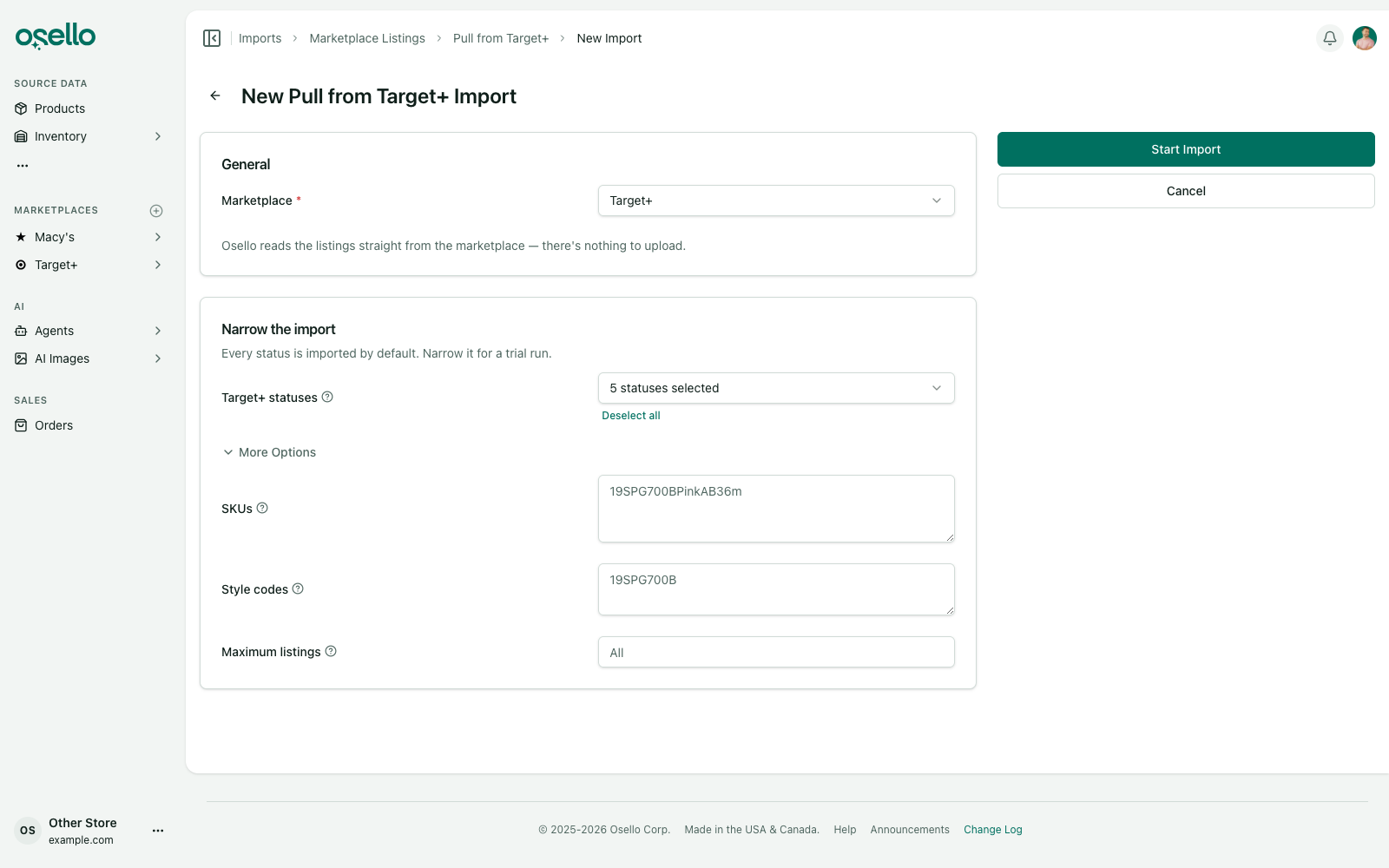
Narrowing the import
A first run against a large catalog is a big job, so it's worth trying a handful of listings before you commit to all of them.
Target+ statuses starts with every status selected, which imports your listings whatever state they're in. Deselect the ones you don't want to narrow it — leaving only Rejected, for instance, brings in just the items Target is asking you to fix.
Three more filters sit under More options, and they all combine with each other and with the statuses:
- SKUs — one per line, or comma separated. Osello matches these against every place Target might be holding your SKU. Naming any SKU in a variation group brings in the whole group, because half a listing is worse than none of it.
- Style codes — the code shared by the variations of one style.
- Maximum listings — stop after this many. Set it to 5 for a trial run.
What happens next
The import runs in the background and you can leave the page. Each listing gets its own row on the import, so you can see exactly what was created, what was updated and anything Osello had to skip. A row that ran into trouble with one field still imports the rest of the listing and tells you about the field.
Importing the whole catalog takes a while: Target+ hands out its catalog a page at a time, and Osello reads all of it so that every variation group arrives intact. Narrowing the import doesn't shorten that reading pass — Target+ gives no way to ask for part of a catalog — but it does cut down how many listings Osello then builds.
While that reading pass is running the import's page says where it has got to — how many products it has read, then how many listings it has built — and rows start appearing as soon as Osello has turned the first of your listings into one. A catalog of tens of thousands of products can take a few hours to read, and the running commentary is how you can tell it is still working.
Running the import again later is safe. It updates the listings it already created rather than duplicating them, and it re-reads each one's status and issues from Target+.