Last updated: Oct 1, 2026 at 11:02PM
When your data lives in a spreadsheet, you don't have to retype it. Upload a CSV or Excel file (.csv, .xlsx, or .xls) and Osello imports it row by row — then shows you exactly which rows succeeded and which need attention.
What you can import
Products. Build or update your catalog from a spreadsheet. Osello's AI reads your column headings and matches them to the right product attributes automatically — titles, descriptions, links to your images, identifiers (SKU, MPN and barcode, where a UPC, EAN, GTIN, JAN or ISBN column fills the barcode), prices, weights and dimensions, tags, brand, and variant options like size and color. Columns it can't match are kept as extra attributes on the product, so nothing in your file is lost. Files you exported from Osello import back onto the same products, so you can edit your catalog in a spreadsheet and upload it again. Ready-made formats are also available for Amazon-style product files, and a Product URL option pulls product data straight from a web page.
Marketplace listings. Create or update listings for one marketplace in bulk. You'll pick which marketplace the file is for during the upload. Osello accepts its own re-importable export format, and for Mirakl-powered marketplaces it also reads the marketplace's own export file. Variations are detected automatically: any attribute the marketplace treats as variant-level (its own size or color fields included) becomes a variation option when its values differ between variants in a group. A group with a single row is a standalone listing only when none of those attributes are filled in; a lone row that names a color or size imports as a configurable listing with one value per option. Two optional toggles — Skip existing SKUs and Skip existing group codes — let you add only what's new without touching listings that already exist.
The upload form has a card for Existing listings and one for New listings, deciding per variant: a variant the file updates follows the first, a variant it creates follows the second. Under Existing listings, Skip existing listings leaves any listing whose group code is already in Osello untouched, and Skip existing SKUs does the same per SKU. Update existing matched states is off by default, so a content re-import never moves states; turn it on to mark the matched listings as live (published) and to set their content state (it defaults to Approved when marking them live, and to Leave as is otherwise). Under New listings, Mark as live (published) is on by default with the content state set to Approved, which is what a marketplace export of products that went live before you connected Osello needs. Turn it off to import unsubmitted drafts, or pick another content state. Nothing is sent to the marketplace: these are corrections to Osello's own records, and the next state check against the marketplace still applies whatever it reports. An import never takes a variant off the marketplace. Both cards also offer Mark as disabled for listings that exist on the marketplace but carry no offer, such as a Mirakl export of published products without offers: the imported variants (and their listing, once none of its variants is enabled) are disabled without pushing anything, and the live and content-state controls turn into Was ever live? and Content state before disablement, recording what the listing was before. Enabling the listing later, with its variants, is then all it takes to push the offers. A variant marked live keeps its live status even if the marketplace has since added required fields that its content doesn't fill yet; Osello shows it as incomplete and live at the same time.
Inventory levels. Update stock counts in bulk. Include a column that identifies the item (SKU, UPC, or barcode), a column for the location, and a quantity. Each row sets the stock for that item at that location. Rows that don't match a known item or location are skipped.
Whatever you import, values are read exactly as they appear in the file, so a UPC like 012345678905 or a zero-padded SKU keeps its leading zeros. Excel drops those zeros itself when a cell is formatted as a number, so format identifier columns as Text before saving a spreadsheet.
How to start an import
- Open the store menu at the bottom of the left sidebar and click Imports.
- Click New Import.
- Pick the kind of data: Source Products, Marketplace Listings, or Inventory Levels.
- Choose the format. For listings, also choose which marketplace the file is for.
- Upload your file and click Start Import.
Product and listing imports can also start from the page they change. On the Products page, or a marketplace's Listings page, open the actions menu (...) and choose Imports under Imports/exports. That page lists only those imports, and its New import button skips step 3. Started from a marketplace's Listings page, the import is already set to that marketplace.
Track progress and fix failed rows
Imports run in the background, so you can leave the page and come back. The import's page updates as rows process: a progress bar with a line saying what the import is doing right now, plus counts of total, succeeded, and failed rows. The progress bar goes away once the import finishes; the counts stay. An Options card lists the choices you made when you started it, such as the marketplace and the skip and state settings.
- Click the failed count to see only the rows that failed. You can also search rows and filter them by status.
- Open any row to see the exact reason it failed.
- Once the cause is fixed, click Retry on the row — no need to re-upload the whole file.
- A row that stops partway, for example because a server restarted mid-import, fails after 3 hours with "This run timed out before it finished." Retry it like any other failed row.
- A row that runs into a temporary database conflict goes back into the queue on its own, up to twice, before it counts as failed. You may see it show as enqueued again for a moment.
Rows that succeed with warnings
A listing row usually covers a whole product — one line per variant. If a few of those lines can't be
imported, the rest still are: the row succeeds and lists a Warning for each line it skipped,
naming the line number, its SKU and barcode, and why it was skipped. A row only fails outright when
none of its variants could be imported.
The usual reason a variant is skipped is that its barcode is already used by another live variant
on that marketplace. A marketplace variant takes its SKU and barcode from the product it's matched
to, so this usually means two products in your catalog share a barcode — the warning shows the
barcode that was rejected.
Fix the source data and click Retry on the row to bring the skipped variants in.
A variant that couldn't be matched to a product in your catalog is a warning rather than a skip: it
imports, and the listing carries a banner saying it isn't linked to a product. Everything about the
listing works except its offer — Osello has no price or inventory to send for that variant until you
import the product and run the import again, which links them by SKU or barcode.
Tell imported values apart from edits made in Osello
A listing field value that was last set by an import shows a small info icon next to the field
name on the listing page. Hover it to confirm the value came from a file rather than an edit made in
Osello, and click it to open the import row that set it. The icon disappears as soon as the value is changed any
other way (by hand, through the API, or by an AI chat), so it always reflects where the current
value came from. Re-importing an identical value doesn't change anything.

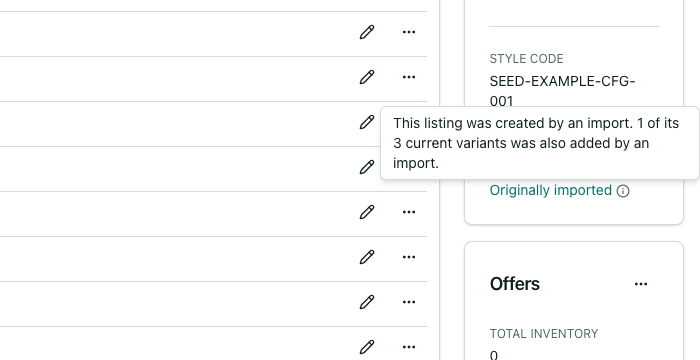
Listings and variants remember where they came from too. The Details card on a listing page shows
an Origin row when the listing was created by an import (Originally imported, linked to the
import row), or when it was created in Osello but some or all of its current variants were added by
an import (Partially imported originally / Variants originally imported, with an info icon
that explains the split). A variant's Details card shows Originally imported when that variant
was created by an import. Listings and variants created in Osello show no Origin row at all.