
Last updated: Oct 15, 2026 at 3:57PM
Product images flow into Osello automatically with your Shopify catalog, and every listing picks its photos from that pool. The Images area — under Source Data in the sidebar — is where you can browse, search, upload, and touch up all of them in one place.
Where images come from
- Your Shopify import. Each product's featured image and additional images come in with the product, including variant-specific images (the navy photos on the navy variant).
- Uploads. Click Upload Images in the Images area to add photos directly — useful for swatches, size charts, or shots that don't live in Shopify.
- Images Osello creates. AI touch-ups produce a new image rather than changing the original. Each created image stays linked to the one it came from — along with a plain-English note of what changed (for example, "Outpainted sides to fit 4:5 aspect ratio") — so you always know what's an original, what's a version, and how each version differs.
When the same photo arrives more than once — reused across variants, or re-imported on a later sync — Osello keeps a single copy instead of filling your library with repeats. Recolored photos are the exception worth knowing about: if two shots are identical apart from the product's color, Osello treats them as two different images, so the mint top keeps the mint photo and the red top keeps the red one.
Browsing the Images area
The Images page shows your whole library as a grid. Search, or filter by:
- Used In — featured images or alternate images
- Category — swatch, size chart, or uncategorized
- Aspect Ratio — 1:1 (square), 2:3 (tall portrait), or 4:5 (portrait)
- Product SKU, and originals only (hide Osello-created versions)
An image waiting for approval carries an amber badge in the grid, and a rejected one a red badge. While any images are waiting, a banner above the grid links to the approvals queue.
Search takes a plain description ("model wearing the red dress") or an exact reference. Paste an Osello ID for an image, product, product variant, listing, listing variant or listing field value to see the images it uses, swatches and size charts included. A single word is matched against product and listing SKUs and style codes first. When nothing matches exactly, Osello searches by what the images show. Searching by an image ID ignores your other filters so the image always shows up.
Click any image for its detail page: dimensions, aspect ratio, the products using it, and an AI description panel showing everything Osello's AI noticed about it — background type, whether a model appears, any visible text, and more. Those attributes power image search and help match images to marketplace rules.
Editing an image
Edit details in the detail page's actions menu (the ... button) opens the image's settings:
- Name — the title shown for the image across Osello. Leave it blank to use the name the AI generated.
- Description — what the image shows, in your own words. Search and the AI listing tools read it alongside the AI's own notes.
- Image file — click the thumbnail to choose a replacement file. The image keeps its products, listing slots and history; its thumbnails and AI description are regenerated from the new file. A replacement that is byte-for-byte identical to another image in your library is rejected, since that image already exists.
- Category — swatch, size chart, or uncategorized.
Images you upload directly are described by AI right away. Images that arrive with your catalog import skip that step so imports stay fast — when an image hasn't been described yet, the AI description panel offers a Describe with AI button, the analysis runs in the background, and the attributes appear as soon as it finishes. Osello's AI listing tools also describe images on their own when they need the attributes (for example, when picking the best featured image).
Changing a product's or variant's images
Click Edit on a product or variant. The Images card holds its Primary image and Alternate images:
- Click an empty slot or Replace to pick an image from the variant, the product, related grouped products, your full library, or upload a new one.
- Drag alternate images to reorder them, and use a tile's actions to crop it, edit it with AI, or remove it.
- Click Save to apply the changes.
A product's images are shared by all its variants. A variant with no images of its own shows the product's images until you add some. If you leave the primary image empty and keep alternate images, the first alternate becomes the primary image when you save.
Changing a product's images doesn't change its existing listings, which keep the images already set on their fields.
For products that sync from Shopify, the next sync replaces the images with the ones in Shopify, so make lasting changes in Shopify. See why did my product data change back?. Products you created by hand or imported from a file keep your changes.
How listings use images
A listing's featured image and alternate images are listing fields, just like its title or its category attributes. They start from the product's own images, and you can change them per listing without touching the product: the image picker lets you choose from the current variant's images, the whole product's, related grouped products', your full library, or upload something new on the spot.
Two special image roles live on the product side:
- Swatch image — a close-up of the fabric or color, used when a marketplace requires a swatch and the variant doesn't have its own.
- Size chart image — attached to the product and used where the marketplace calls for one.
You can set both when editing a product or variant.
Some marketplaces cap the file size of swatch and size chart images (for example, Bloomingdale's allows swatches up to 10MB and size charts up to 100KB). Osello imports those limits with the marketplace's requirements, and the listing field shows an error if the image you pick is too large — choose a smaller image or a compressed version.
AI touch-ups
From an image's detail page, open the actions menu (the ... button) and look under AI for one-click edits that cover the most common marketplace requirements:
- Make Background Stark White - replaces the background with flat, pure white (#FFFFFF) edge to edge, the catalog look most marketplaces require on main images. The subject isn't touched.
- Make Background Studio White - swaps the background for a clean, bright white studio backdrop with natural lighting and a soft shadow, for stores that prefer a photographed look over a flat fill.
- Fit to Aspect Ratio - extends or crops the background so the image fits the ratio a marketplace asks for (1:1, 4:5 or 2:3) without cutting into the product. On a size chart or other graphic, it adds plain space in the graphic's own background color instead and may enlarge the graphic to fill the frame, keeping every word, number and logo. Osello asks which ratio you want if you haven't said.
- Crop Out Model Face - crops the image just below the model's mouth so they can't be identified, keeping the image's shape. Only offered while a face is visible.
- Create Plus-Size Model Variation - a companion image of the same garment on a plus-size model, with everything else unchanged. Only offered when the photo has a model.
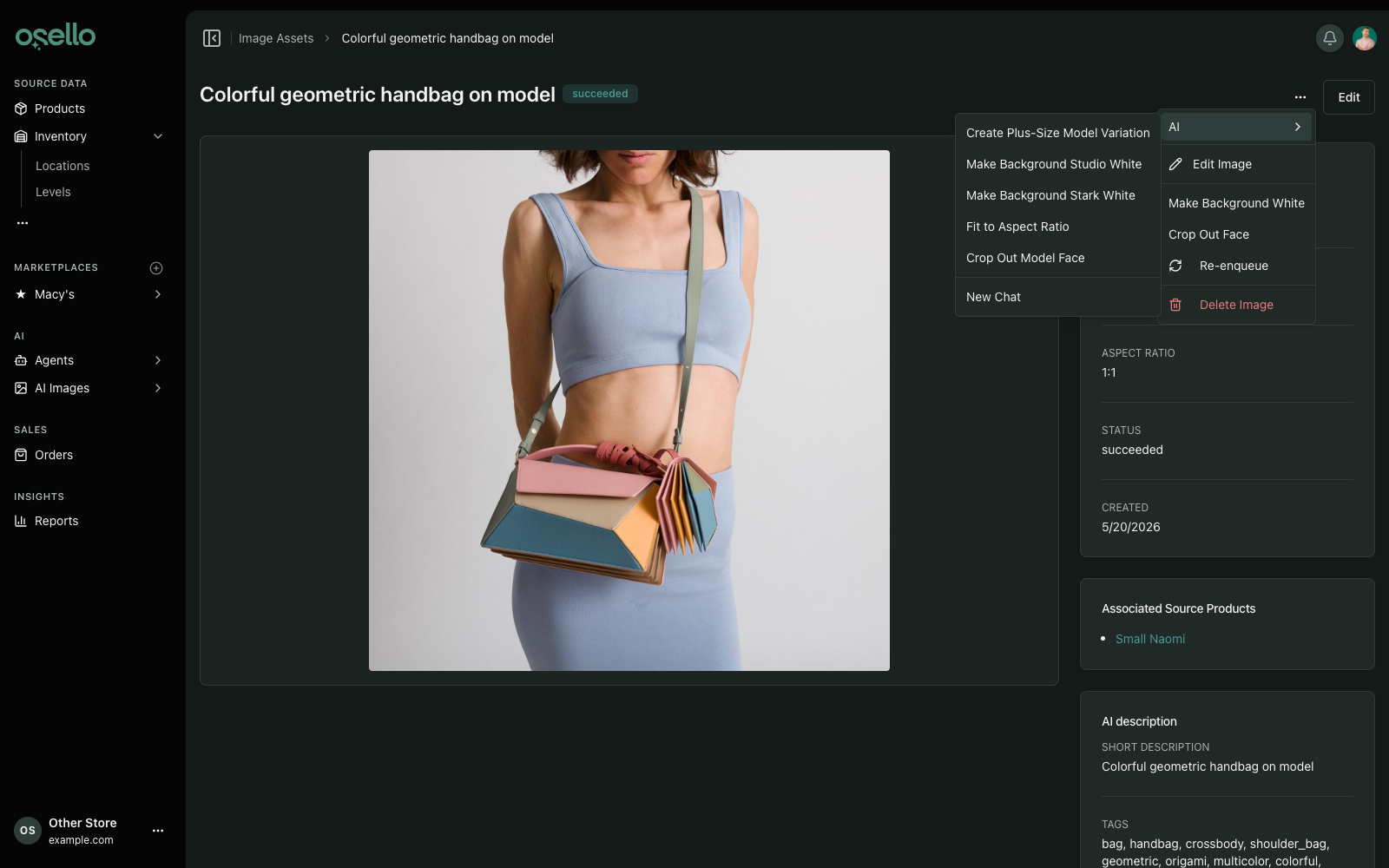
Each one starts an AI chat that makes the edit and saves the result as a new image straight away; you aren't asked to approve it in the chat first. The new image is linked to the original with a note of what changed, and it waits in the approvals queue (Review images on the Images page) like any other AI-made image (see below), so nothing reaches a marketplace unreviewed. Your original is never modified.
For other edits you ask the agent for in the chat, the AI checks each result against your request before showing it to you for a go-ahead, re-trying with a corrected prompt when the result misses. On a size chart or other graphic it checks that every word, number, row and logo came through unchanged. The AI redraws the whole image, so small differences in font or spacing are expected and don't count against a result. Approving a result in the chat counts as your review: the saved image is marked approved by you and doesn't wait in the queue. It won't loop forever: after 7 attempts on the same image without you accepting one, it stops and suggests starting again from a different image, and no single chat can run more than 10 edits.
Listings have their own version of this. A listing's Primary Image field carries an Update If Needed action that reads the marketplace's background and shape rules for that field and corrects the image against them in a single edit, then sets the result on the field. See how Osello chooses your listing images.
An image's detail page lists every image created from it under Variations of this image, each labeled with what changed. A variation's page is badged variation and links back to its original. Versions of versions (say, a crop that later got a white background) keep the full story in order: "Outpainted sides to fit 4:5, then replaced background with pure white". Osello's AI listing tools use those notes too: when a marketplace needs a different aspect ratio or background, they reuse a version you already have instead of generating a new one.
Creating a variation yourself
A variation is a new image linked to the one it came from. To make one, open an image's detail page and choose Create variation in the actions menu (the ... button), or use the link in the Variations of this image card. Pick how to make it:
- Manual crop - drag a crop box over the image at the aspect ratio you choose, then click Save variation.
- AI Studio - describe the edit you want in a prompt, run it, and click Save variation when you like the result.
- Upload - add a file you edited somewhere else.
The new image appears in the Variations of this image card. Variations you make yourself are ready to use straight away.
When you upload a file that's already in your library, Osello keeps the single copy it has and doesn't add it as a variation. The warning that says so has a View image button that opens the existing copy. A crop that matches one you made before shows you the existing variation instead of a duplicate.
Images the AI creates wait for approval
Every image Osello's AI made for you — a touch-up, a background swap, a crop it did while filling a marketplace's required aspect ratio, an AI-generated shot — and every image Osello cropped on its own while creating a listing waits in the approvals queue (Review images on the Images page) until someone approves it, and a listing using an unapproved image can't be submitted. Images that came in with your catalog, images you uploaded yourself, and edits you made yourself (cropping an image in Osello, for instance) never enter that queue.
Choosing a waiting image for a listing field or attaching it to a product doesn't approve it. Approve it on the review page or on the image's own page. See Approve AI-edited images before they go live for the full flow.