
Last updated: Nov 3, 2026 at 9:30PM
Two-factor authentication adds a step after your password: a passkey, or a 6-digit code from an authenticator app on your phone. Someone who learns your password still can't sign in without it. Each person turns it on for their own sign-in.
Signing in with Google or Microsoft never asks for this step. Your Google or Microsoft account checks who you are, so turn on two-step verification there too.
Set up an authenticator app
Any app that shows 6-digit codes works, such as Google Authenticator, Microsoft Authenticator, 1Password or Authy.
- Open Manage Account from the menu under your name, then the Security tab.
- Under Authenticator app, click Set up.
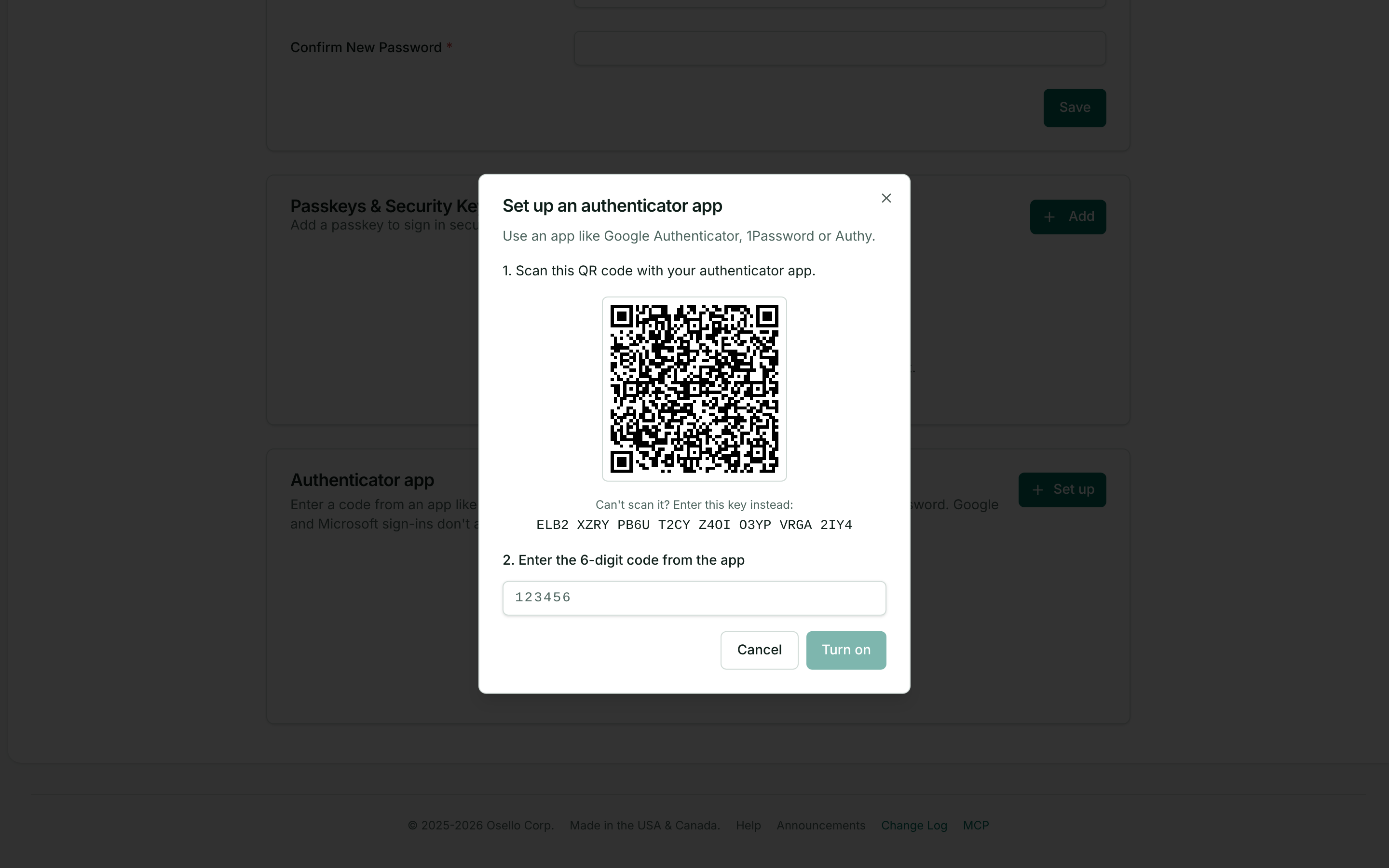
- Scan the QR code with your authenticator app. If you can't scan it, type the key shown under it into the app instead.
- Enter the 6-digit code the app shows for Osello and click Turn on.
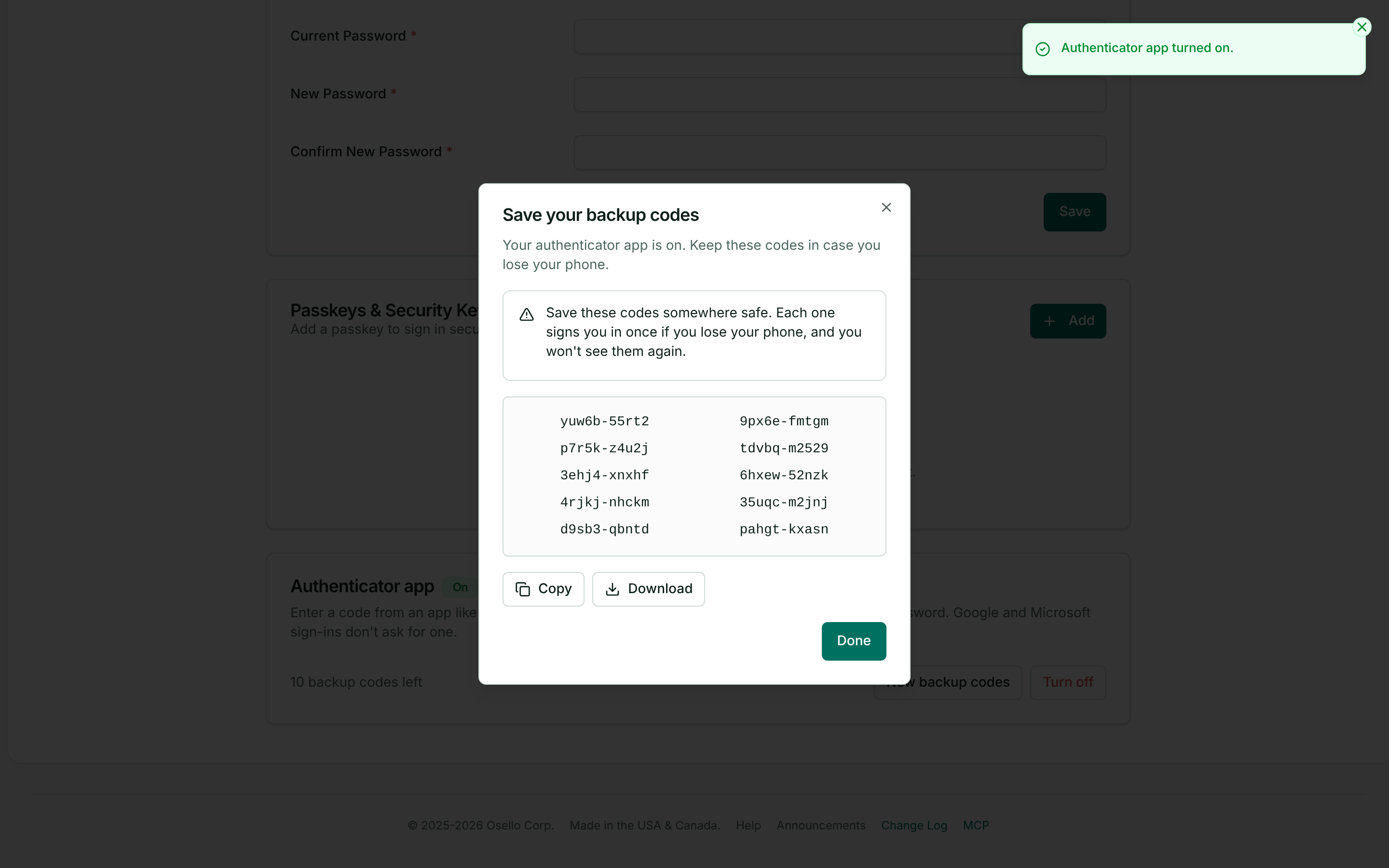
- Save your backup codes. Click Copy or Download and keep them somewhere safe, like a password manager. Osello shows them only once.
If the code doesn't match, check that the time on your phone is set automatically. The codes depend on the clock.
Use a passkey instead
A passkey uses your fingerprint, face or device PIN, or a security key you plug in. Under Passkeys & Security Keys on the Security tab, click Add and follow your browser's prompt. You can have a passkey and an authenticator app at the same time.
Sign in
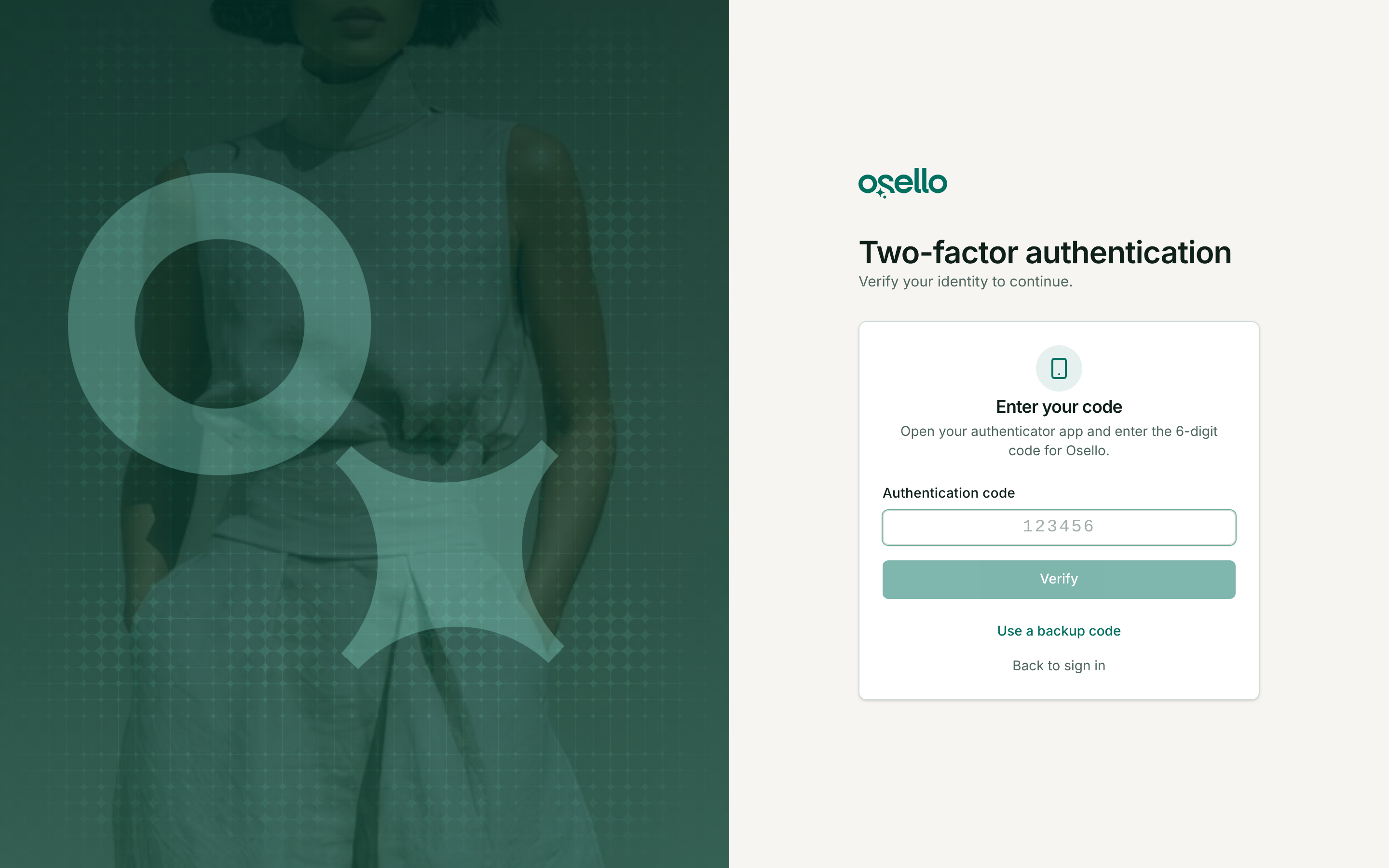
After you enter your email and password, Osello asks for your second step.
- With an authenticator app, enter the code it shows for Osello.
- With a passkey, follow your browser's prompt.
- With both, Osello starts with the passkey. Click Use your authenticator app instead to switch.
Wrong codes count toward the same limit as wrong passwords: after 20 in a row, Osello locks the account for an hour. See Can't sign in to Osello.
If you lose your phone
- On the sign-in step, click Use a backup code and enter one of your saved codes. Each backup code works once.
- Open the Security tab and click Turn off under Authenticator app. Enter another backup code to confirm.
- Click Set up to add the app on your new phone. You get a new set of backup codes.
If your email address is a Google or Microsoft account, you can also sign in with that button, which doesn't ask for a code.
When you're down to two backup codes, the Security tab reminds you. Click New backup codes and enter a code from your app to replace them all. The old ones stop working.
If you've lost your phone and your backup codes, contact us.
Turn it off
On the Security tab, click Turn off under Authenticator app and enter a code from the app or a backup code. To remove a passkey, click the trash icon next to it.