
Last updated: Nov 26, 2026 at 9:53AM
Your store's brand settings decide which brand name a listing can carry. A listing's Brand field is a dropdown of the brands you set here, so a typo in your product data can no longer reach a marketplace.
Open Settings -> Brands to manage them.
Selling one brand
New stores start with one brand, named after the store. While your list has one brand, every listing gets it, whatever the brand on your product says. This is useful when your Shopify vendor field holds something else, such as a supplier name.
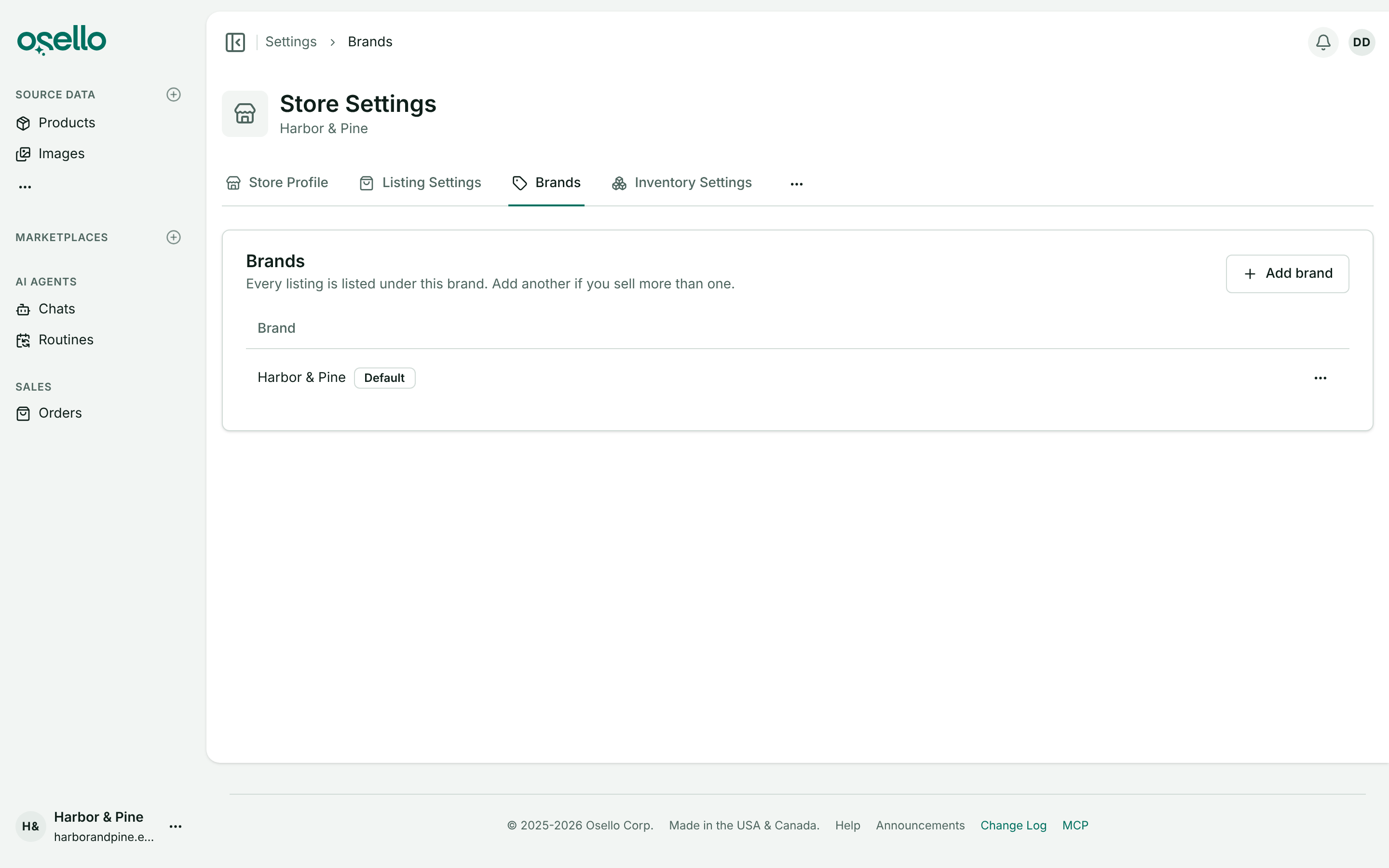
Use Rename in the brand's menu to spell it exactly as it should appear on every marketplace. Renaming it renames it on your existing listings too.
Selling more than one brand
Click Add brand to add a second brand. From then on each listing gets the brand its product names, and the brand you started with stays your default.
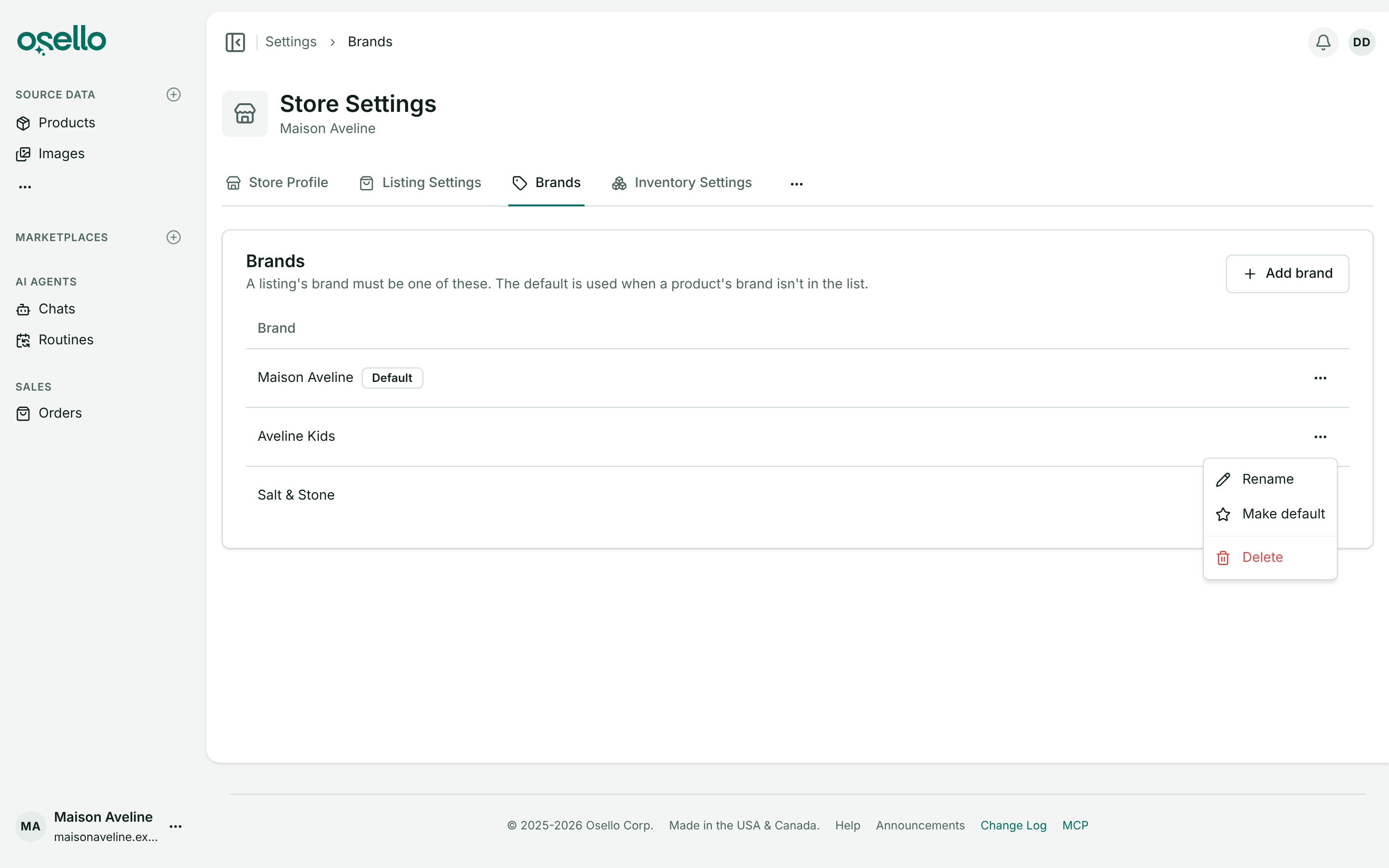
- Add brand adds a brand to the list. A store can have up to 100.
- Rename changes a brand's spelling. Listings under that brand are renamed with it, and listings that are already live need to be submitted again for the marketplace to get the new name.
- Make default picks the brand a new listing gets when its product's brand isn't in your list. Only one brand can be the default. Remove as default leaves you with none, and those listings then start with an empty brand for you to choose.
- Delete removes a brand. Pick another brand under Replace with and the listings that carried the deleted one get it instead, in a bulk update you can follow under your bulk actions. Those listings are marked as changed, so live ones need to be submitted again. With no replacement, the listings keep the old name and are marked invalid until you choose another brand for them. Your last brand can't be deleted.
Osello won't add a brand that is already in your list under another spelling. "FURNIQ UK" counts as "Furniq UK", and "Salt and Stone" counts as "Salt & Stone".
When you delete brands until one is left, that brand becomes your default and every new listing gets it. Listings that carried a deleted brand only change if you picked a replacement when you deleted it.
How a new listing gets its brand
With more than one brand in your list, Osello reads the brand on the listing's first product and looks for it in your brand list. The comparison ignores capital letters, spaces, punctuation and a trailing "Inc." or "Co.", and treats "and" and "&" as the same word. When it finds a match, the listing gets the brand as your list spells it. When it doesn't, the listing gets your default brand.
A marketplace's own rules still apply. Target+, for example, allows 50 characters for a brand, so a longer brand can't be used there.
Brands on your products
A product's brand stays free text, because it comes from your store's data. Osello checks it against your brand list in two places:
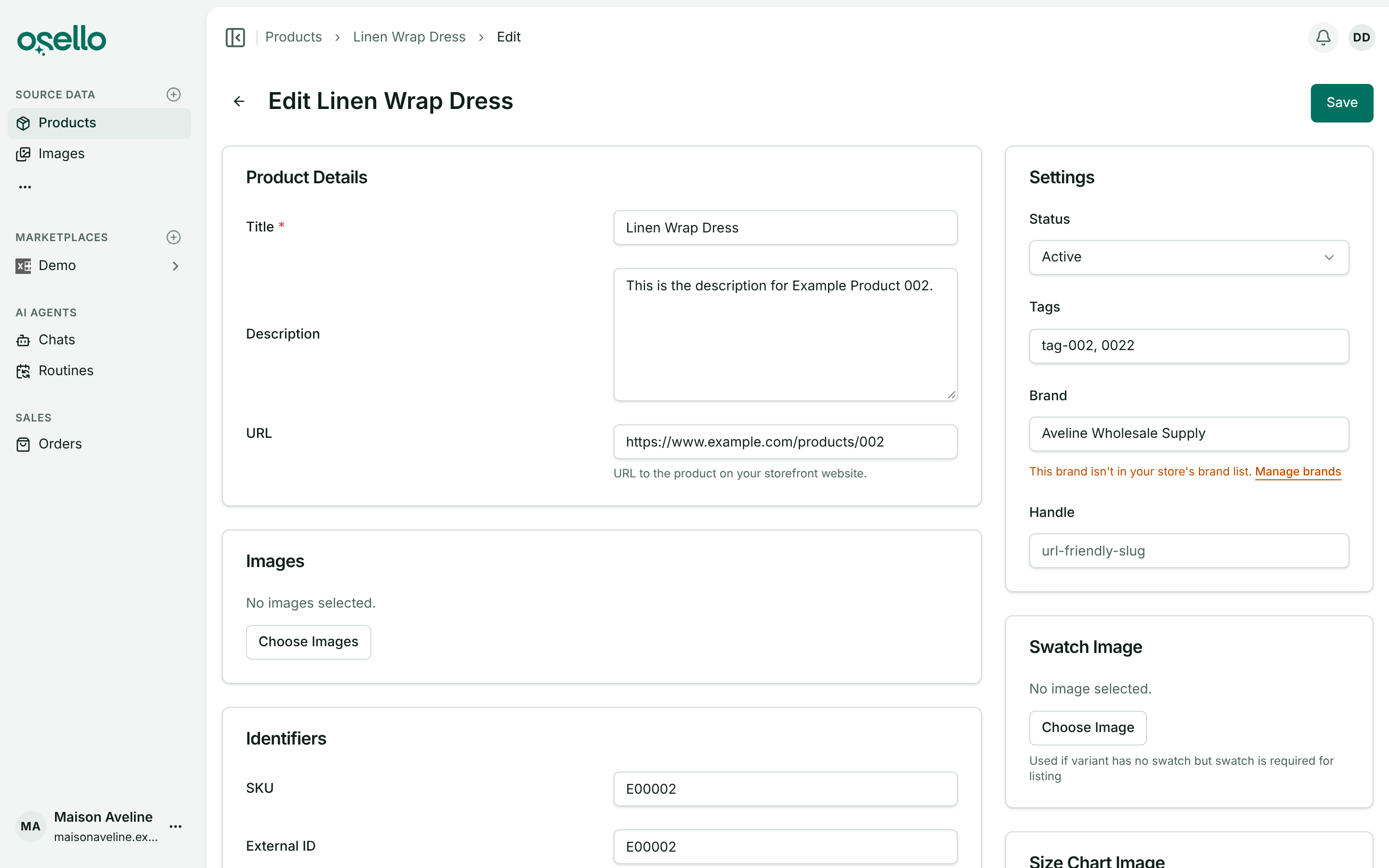
- On a product's page, a warning icon appears next to a brand that isn't in your list.
- When you edit a product, the brand field suggests your brands as you type and warns you when what you typed isn't one of them.
Both link to Settings -> Brands. A store with one brand never shows the warning, since every listing uses that brand.
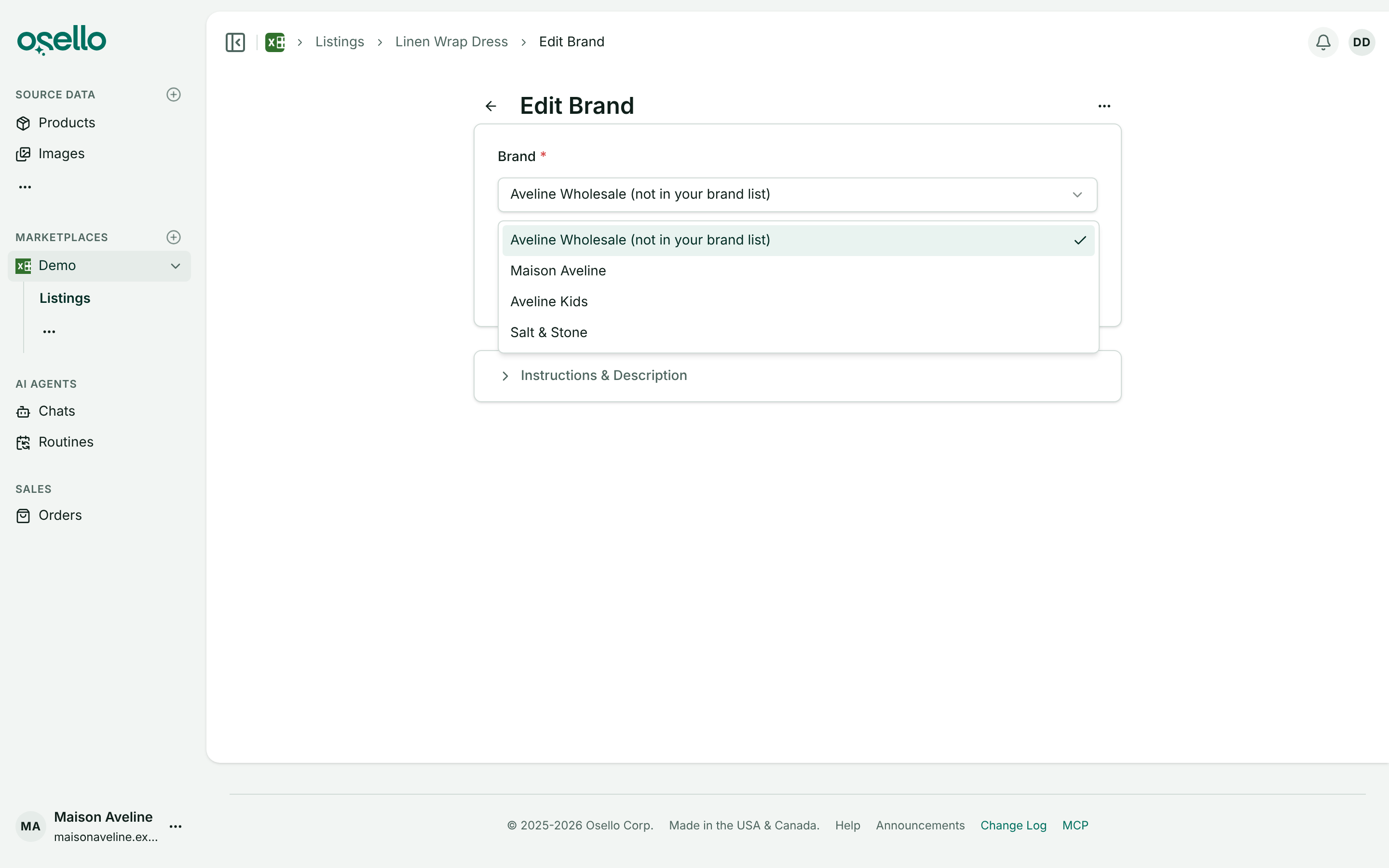
Listings marked invalid for their brand
A listing whose brand isn't in your brand list can't be submitted. You'll see this on listings that carried a brand you later deleted, and on values brought in by an import. Open the listing's Brand field and choose a brand from the dropdown, or add the missing brand to your list.
See also what gets filled in automatically.