Last updated: Aug 1, 2026 at 12:24AM
A routine is a standing instruction for one of your AI agents: do this job, on this marketplace, at this time, every day. Once it's set up nobody has to remember to start it. The most common use is listing new products — every morning the routine finds whatever is ready to list and lists it.
Create a routine
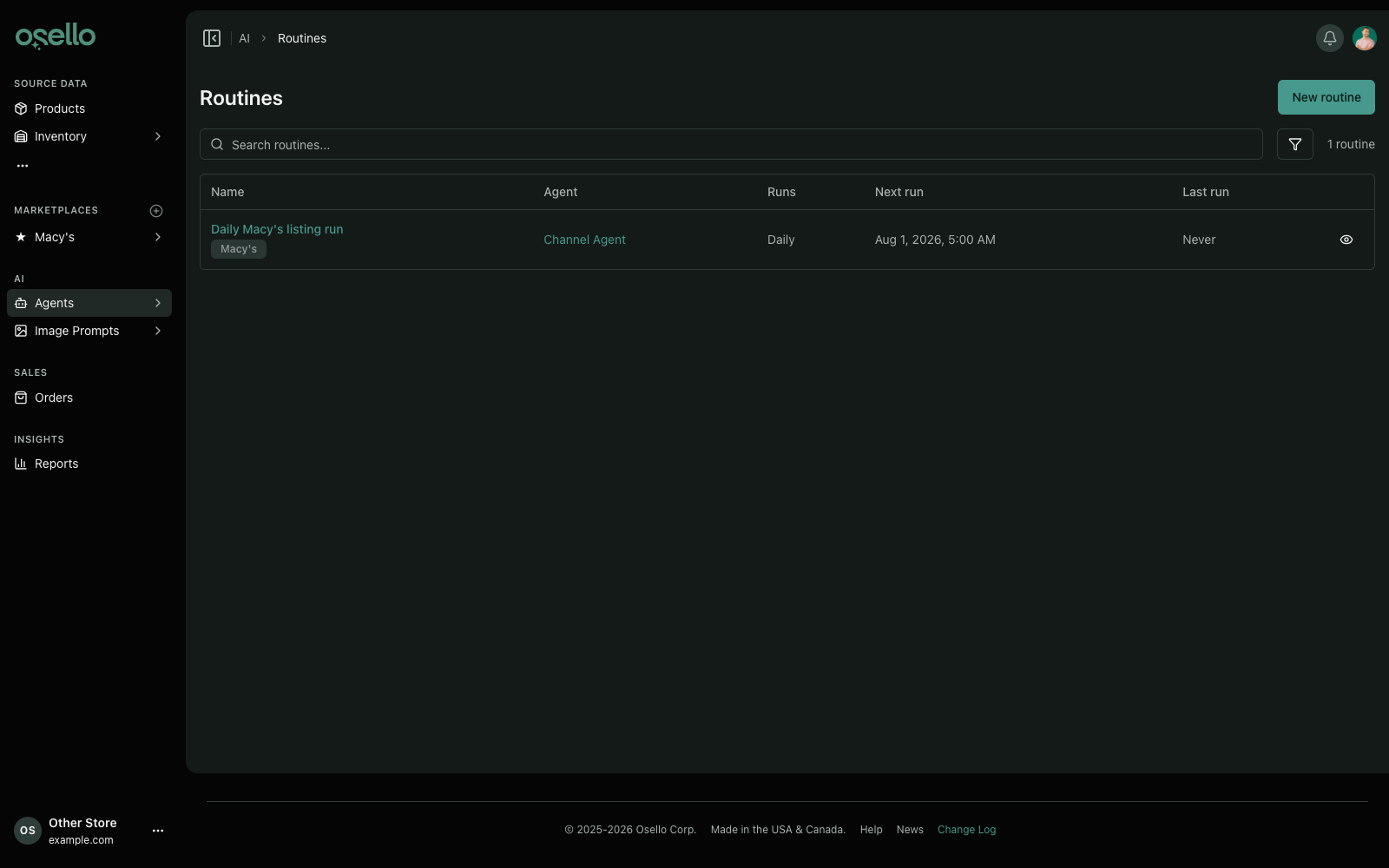
- In the sidebar, open Agents and click Routines.
- Click New routine.
- Give it a Name you'll recognize in a list, like "Daily Macy's listing run".
- Choose the Agent that should do the work. Pick the marketplace agent for anything that happens on one marketplace; pick the store assistant for store-wide jobs.
- If you chose a marketplace agent, choose the Channel it works on.
- Optionally choose a Skill. A skill is a job the agent already knows how to do — choosing one fills in the Ask for you, which you can then edit.
- Check the Ask. This is what the agent is told at the start of every run, so be specific about what "done" looks like.
- Set Runs daily at and the Time zone. The routine keeps that local time year-round, so a 9:00 AM routine stays at 9:00 AM when the clocks change.
- Click Create routine.
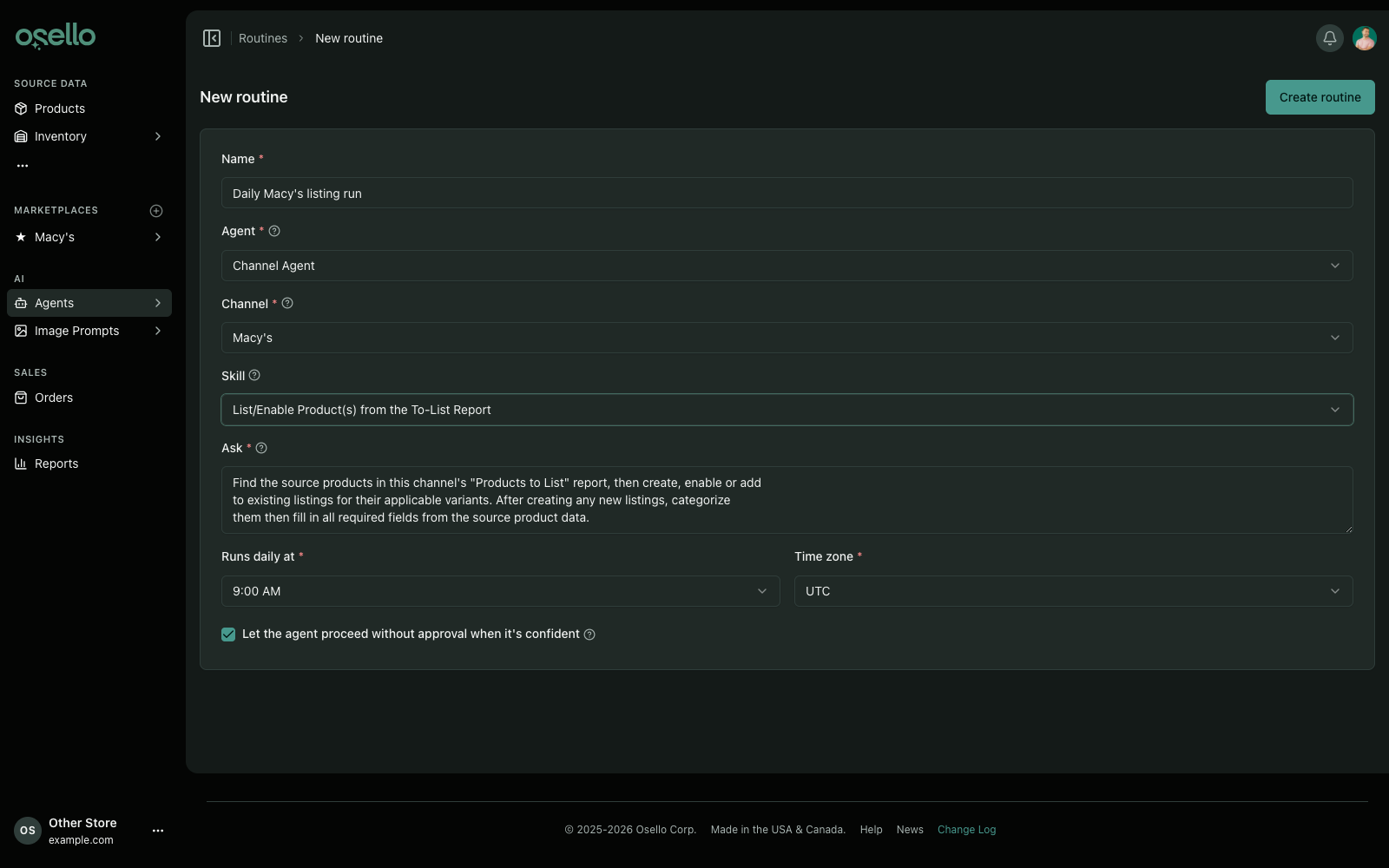
List new products every morning
This is the routine most sellers set up first. Choose your marketplace agent, choose the marketplace, then choose the skill named List/Enable Product(s) from the To-List Report.
That skill works from the marketplace's own Products to List report, so it lists exactly what that report shows and nothing else. If you want to change what gets listed, change the report's criteria rather than rewriting the routine — the routine will follow.
Approvals on an unattended run
Normally an agent asks before it makes changes. Nobody is watching a scheduled run, so an approval request would leave the job sitting there until someone noticed.
The Let the agent proceed without approval when it's confident checkbox handles this. With it on, the agent goes ahead when the work is unambiguous, and still stops to ask when something is genuinely unclear, when data is missing or contradictory, or when an action can't be undone. Turn it off if you'd rather approve everything by hand — just remember someone has to check in for the routine to finish.
Check on a routine
Open any routine to see its settings and a Schedule panel with its next and last run.
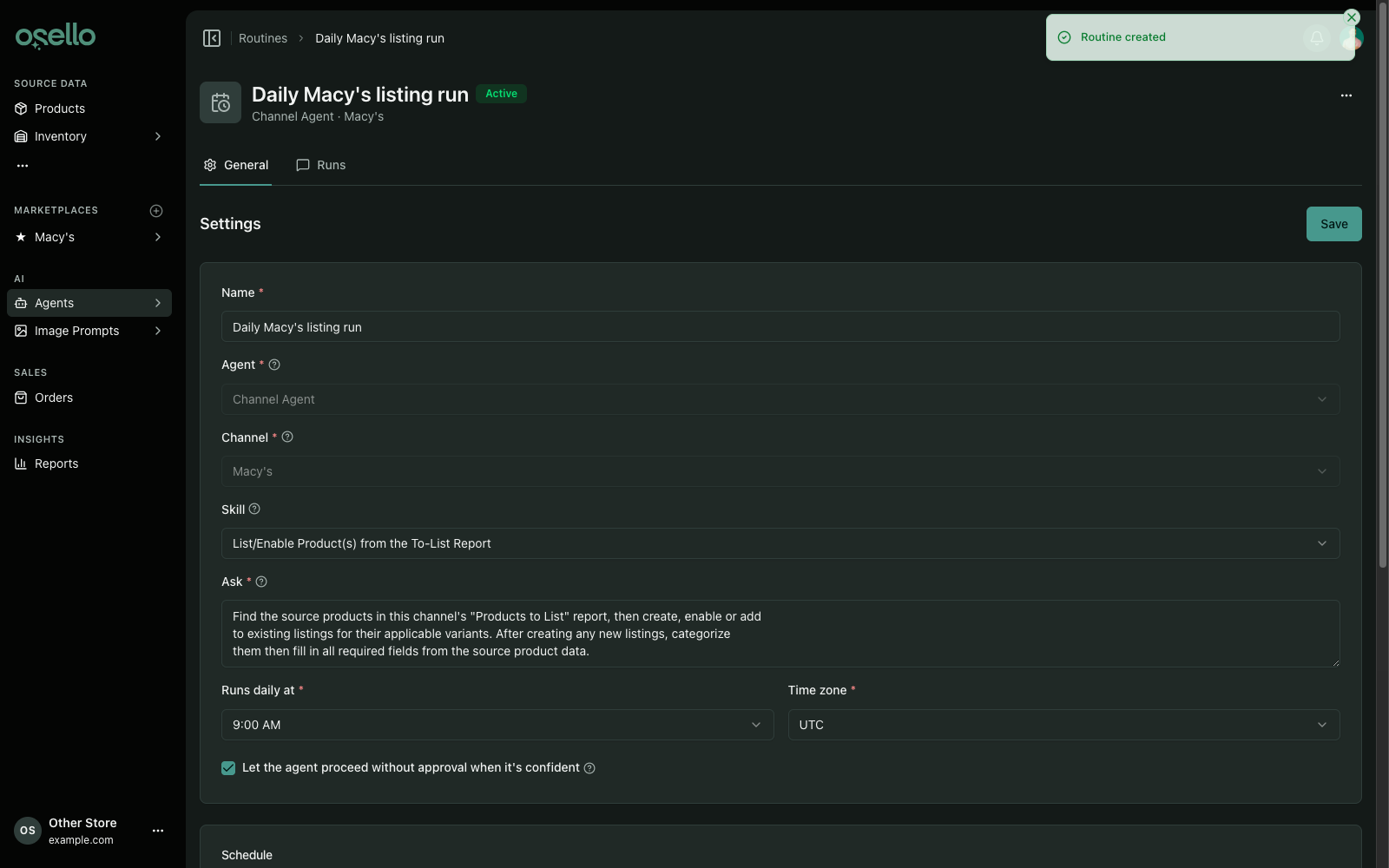
The Runs tab lists every run the routine has started. Open one to read the whole conversation — what the agent found, what it decided, and what it changed. That's the place to look if a run didn't do what you expected.
The ... menu in the top right has three actions:
- Run now starts the routine immediately. It doesn't use up that day's scheduled run, so it's safe for testing a new routine.
- Disable stops the routine running on its schedule and leaves everything else intact. Enable it again whenever you like.
- Delete routine removes it. Its past runs stay in your AI chats.
Good to know
- Each store can have up to five routines. Disable or delete one to make room for another.
- Routines run daily. If a run is still going when the next one is due, the routine waits rather than starting a second one on top of it.
- A run that fails alerts our team so we can look into it.
- Runs happen in the background, so you don't need to leave Osello open.